
The Annotation editor for D2L Assignments will streamline your grading processes while also allowing for more robust student feedback. The Annotations editor automatically loads when viewing a student assignment submission.
Annotation Tools
A new toolbar will appear above the student submission. The annotation tools are found on the right and include a drawing tool, note tool, text tool, and line tool.
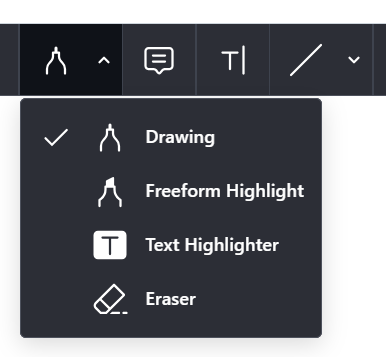
Drawing / Highlighter Tool
Draw (freeform) anywhere on the submission file or use the freeform or text highlighter to highlight student work. Selecting any of these tools will cause a formatting toolbar to open. Use this toolbar to control line color, fill color, opacity, line thickness, and blending modes.

Note Tool
Add a “sticky note” anywhere on the submission file. Students will click on your “note” to view your comments. Selecting this tool will cause a formatting toolbar to open. Use this toolbar to control the note color and icon.

Text Tool
Add text anywhere on the submission file. Selecting this tool will cause a formatting toolbar to open. Use this toolbar to control the text's color and fill, opacity, font, and alignment. 
Line / Arrow / Rectangle Tool
Add lines, arrows, or a rectangle to highlight or point out information on the student submission. Click the line icon to select what type of shape to insert then click to draw on the document.
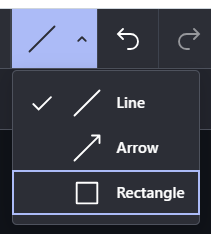 Selecting this tool will cause a formatting toolbar to open. Use this toolbar to control the shape's color and fill, opacity, and line style.

Video Demonstration
Watch the video below for a live demo of the Annotation tool.