This article explains how to save a Mediasite presentation as a video (.mp4) file that can be downloaded to a local computer and played with any standard video player. It also details how to download captions for use in other applications and text transcripts.
Note: This process cannot be completed until the presentation is fully processed by Mediasite.
Downloading Captions
Mediasite automatically captions all videos uploaded to or recorded via the platform. Captioning should complete shortly after a video is uploaded but may take an hour or more depending on the length or complexity of the presentation.
To download either the timed text (captions file that can be converted for use in other applications) or transcription, navigate to a video on MyMediasite.
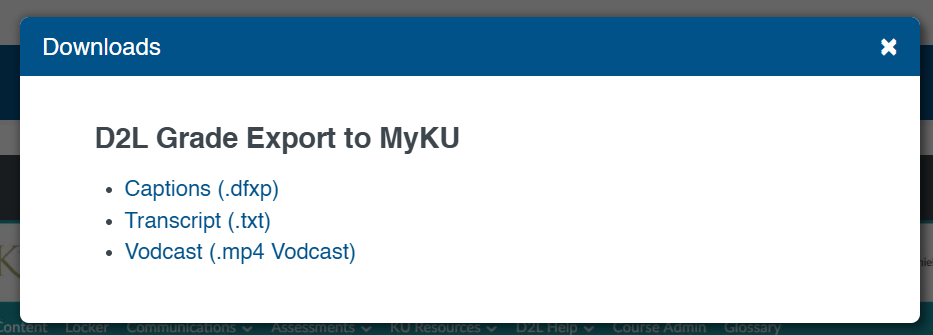
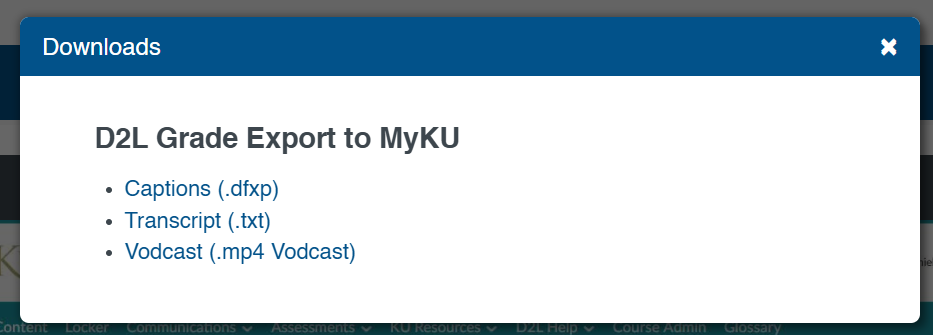
In the right sidebar, click on Downloads. In the window that appears, select either Captions (.dfxp) or Transcript (.txt). If the presentation has been converted to a Vodcast (.mp4), it will appear below the text downloads.
Downloading Video
By default, videos on Mediasite are saved as propriatery presentations. In order to save a presentation to your computer, the video will have to be converted to a vodcast.
Navigate to MyMediasite and authenticate with your KU credentials. Select the presentation that you wish to download from your presentation library. Click on Edit Details in the right sidebar.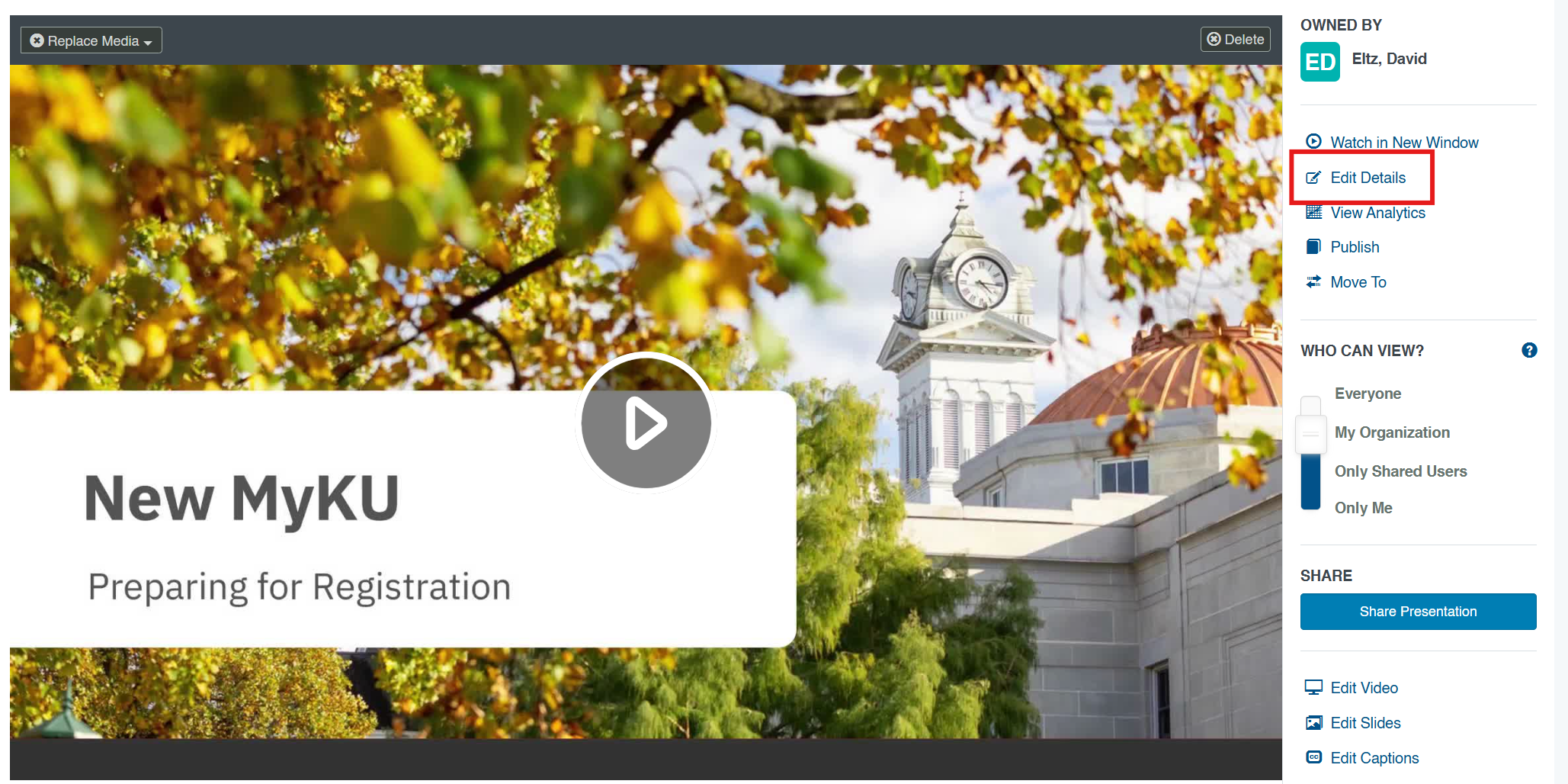
On the “Edit Presentation” screen, click on the “Delivery” tab.

On the Delivery tab, check the box for Vodcast and then click on the Select a Vodcast Project field.

Then click on the Select a Vodcast Project field and select .mp4 video from the drop-down list.

Click Save at the top of the window.
The server will begin to process the video. You can check the status of the project on the Delivery tab.

When the conversion is complete, click the Download to Computer link on the bottom right, then click the Vodcast link.