Creator+ is D2L's advanced content authoring toolset, designed to help instructors create engaging, accessible, and mobile-friendly learning materials directly within D2L. Instructors can use Creator+ to build rich HTML pages that provide a learning experience for students that goes beyond uploaded documents and PDFs.
Creator+ features are organized into two primary categories: Layouts & Elements and Practices.
Layouts & Elements
Creator+ Layouts and Elements allow instructors to create visually appealing course pages without any knowledge of HTML or web design.
Creator+ Layouts provide flexible page design options, including multi-column layouts that help organize information and create more engaging reading experiences.
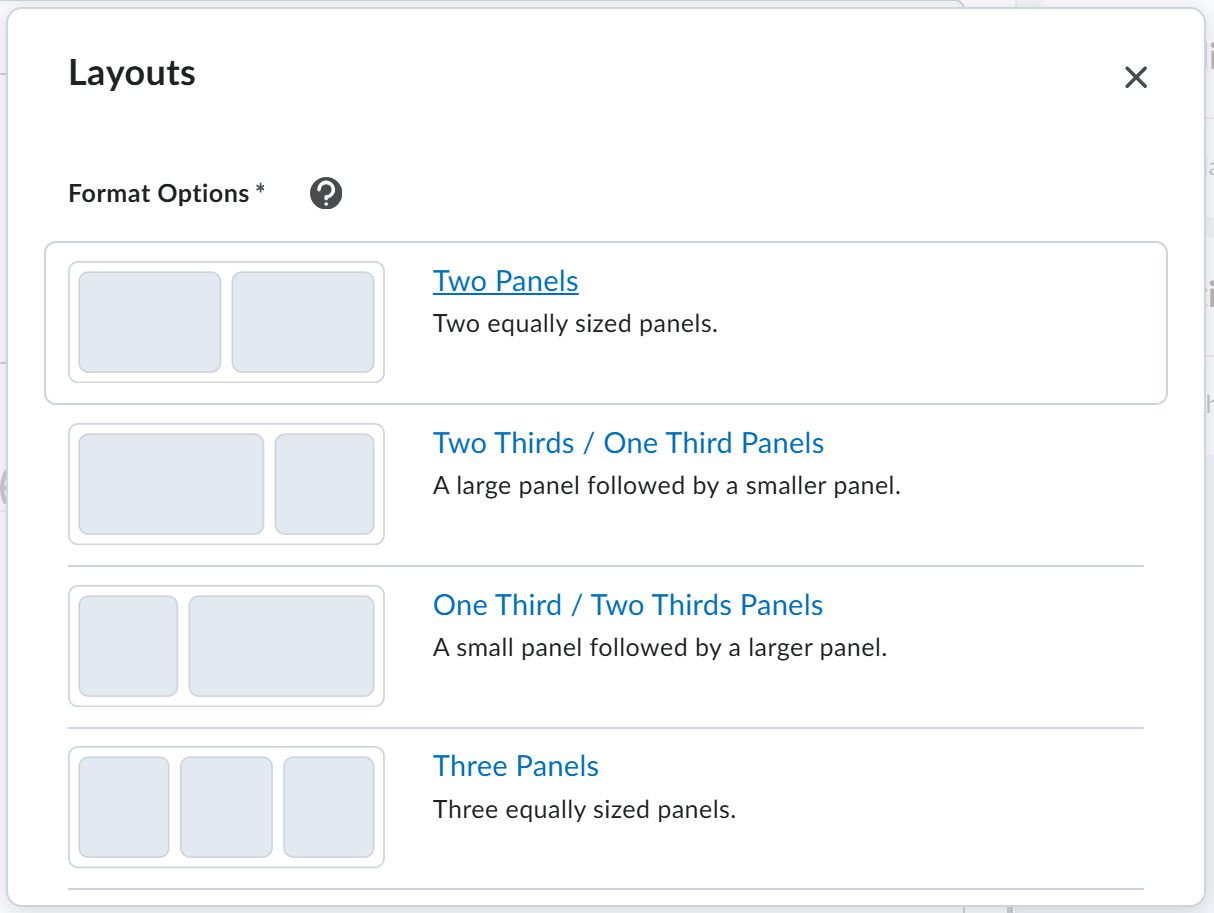
Creator+ Elements add interactive and visual components to course pages, including:
- Accordions
- Tabs
- Timelines
- Flip Cards
- Carousels
- Hotspots
Layouts and Elements can be combined to create sophisticated page designs that enhance content organization and learner engagement. All Creator+ content is designed with accessibility in mind and functions effectively on desktop computers, tablets, and mobile devices.
Practices
Creator+ Practices are inline learning activities that allow students to check their understanding as they progress through course content. These low-stakes interactions can be added directly to a page and are supported by step-by-step creation tools within Creator+.
Available Practice types include:
- Fill-in-the-Blank activities (short-entry or multi-select)
- Multiple choice questions
- Multi-select questions
- Sorting activities
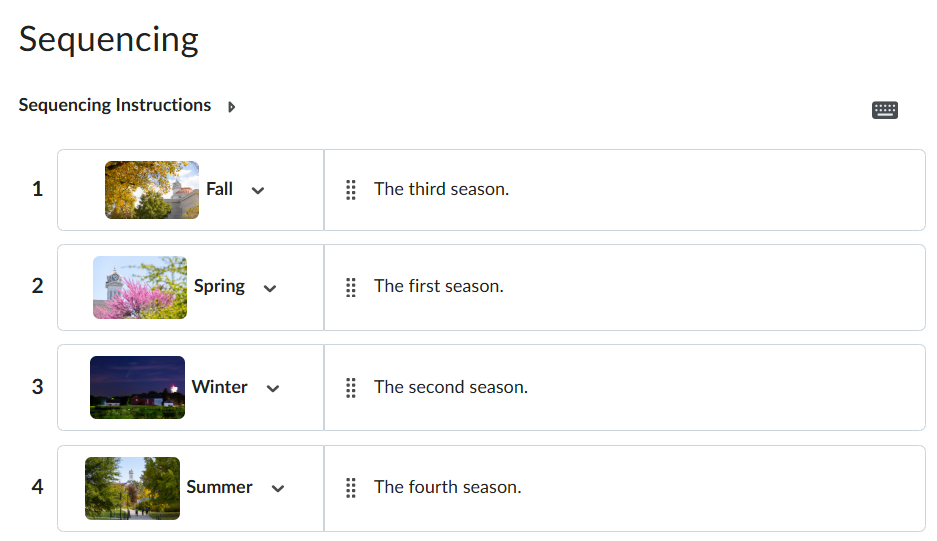
- Sequencing activities
Student completion and progress within Practices can be tracked alongside other D2L content activity. However, Creator+ Practices do not send scores to the D2L Grade Book and are intended for formative learning and self-assessment rather than graded assessments.
Why Use Creator+?
Creator+ makes it possible to create course content that is more engaging, easier to navigate, and better optimized for modern devices. By building content directly within D2L, instructors can provide students with a more seamless learning experience while ensuring accessibility and consistency across course materials.
How to Use Creator+
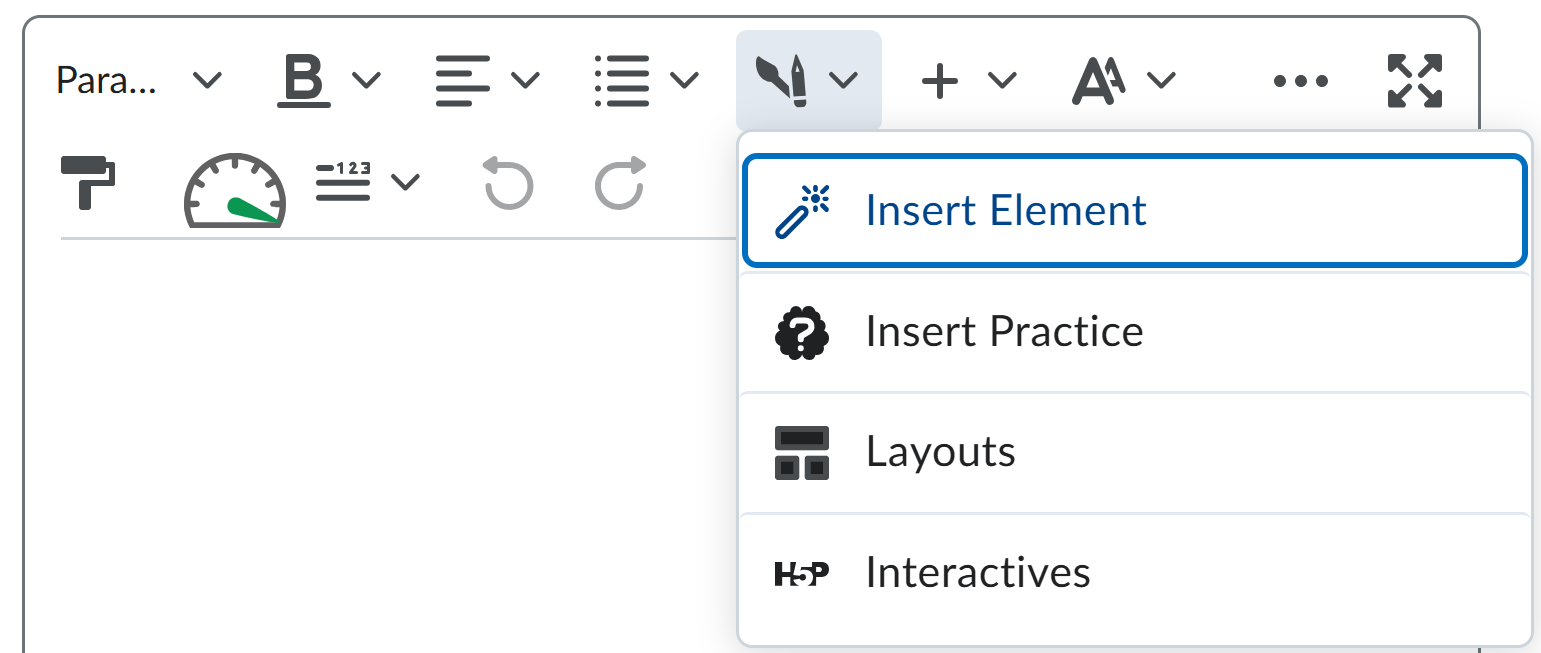
Creator+ elements can be inserted into any HTML area in D2L, including Content pages/files, announcements, and discussion posts. To insert a Creator+ element in any of these places, look for the Creator+ icon.