D2L’s New Content Experience is now the default for all course shells in D2L.
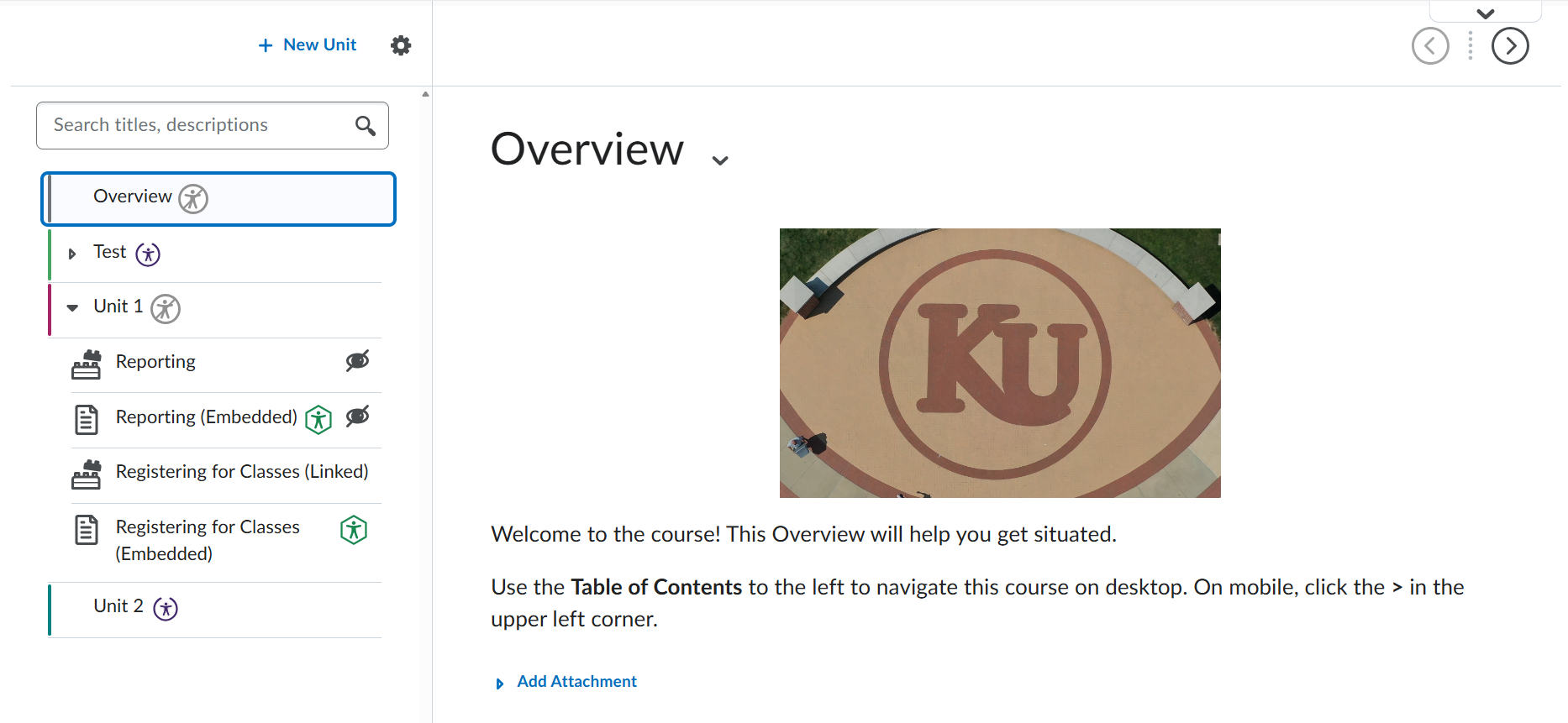
The new interface includes a more compact Table of Contents with expandible and collapsible sections and displays Panorama accessibility icons directly next to every item. Units can also be customized by color.
Changes from Classic Content Experience
In addition to the updated look of Content, the following changes are worthy of note:
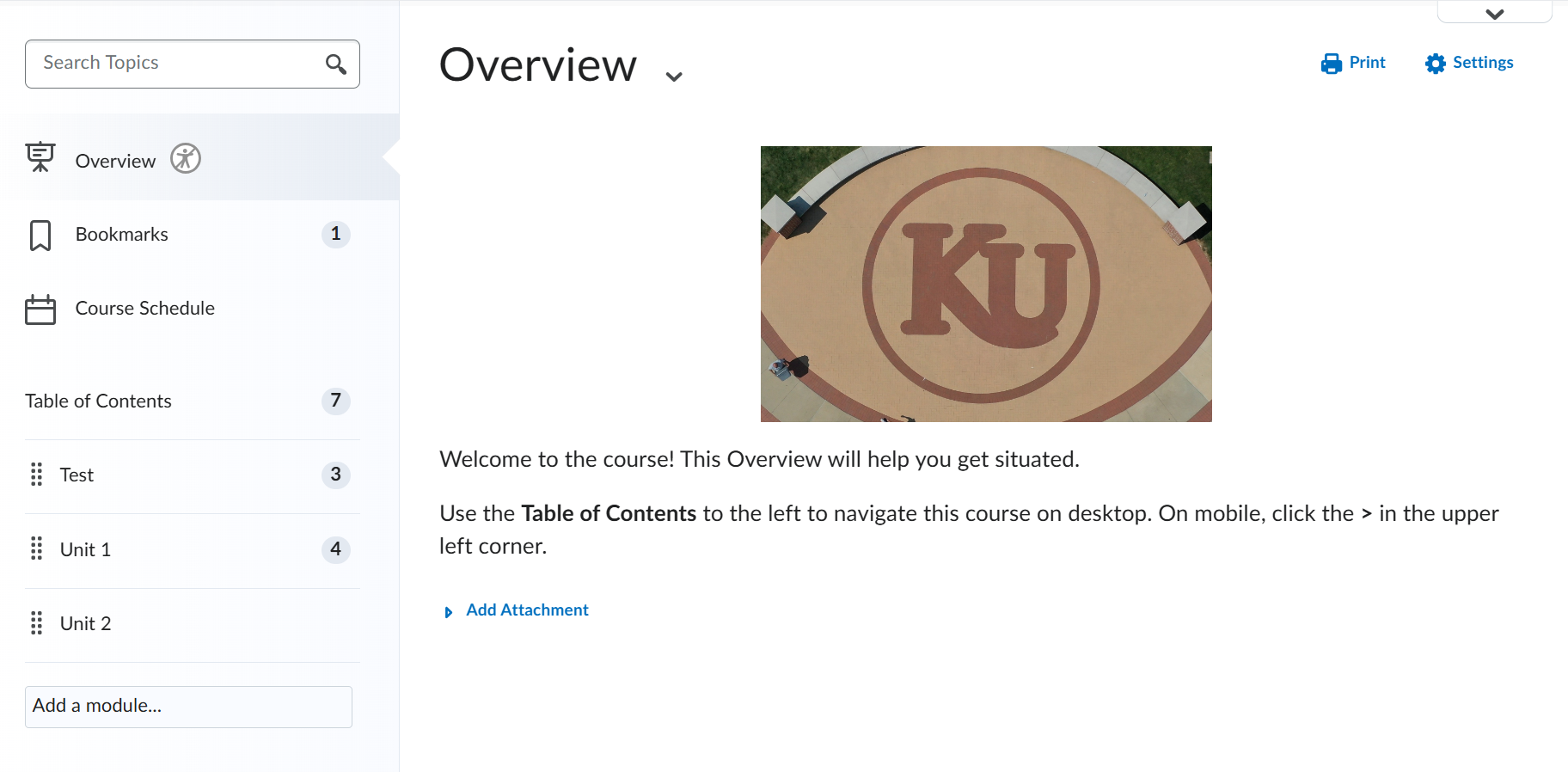
- Overview, Bookmarks, and Course Schedule no longer appear on the left sidebar above the Table of Contents.
- Future courses will not automatically display an Overview unless copied from a course with an Overview. A new Overview can be created at any time using the New Unit button.
- The Course Schedule has been replaced by the Agenda view in the Calendar. A link to the Calendar is available under Communications.
- The new interface uses the term Unit to refer to a top-level collection of content. These were previously called Modules.
- To create a new Unit, use the New Unit button at the top of the Table of Contents.
- The same editing options are available in both versions of the interface. To change dates and restrictions in the new interface, click the … at the top of the Unit and select Edit or View Release Conditions. The new interface also features a menu for setting a unit's color.
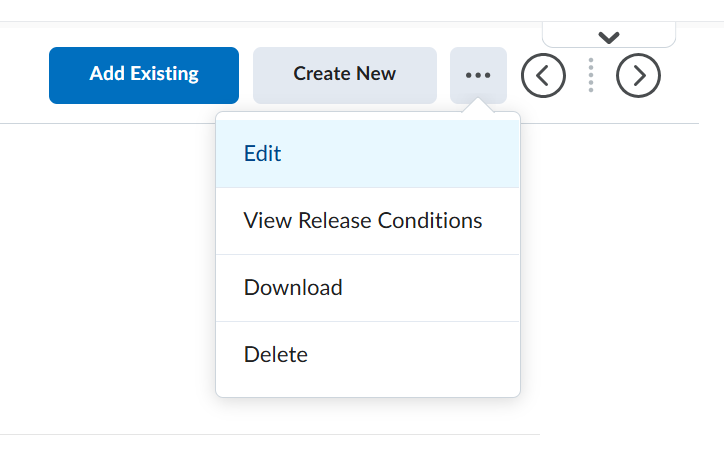
- The options for adding content are now Add Existing or Create New.
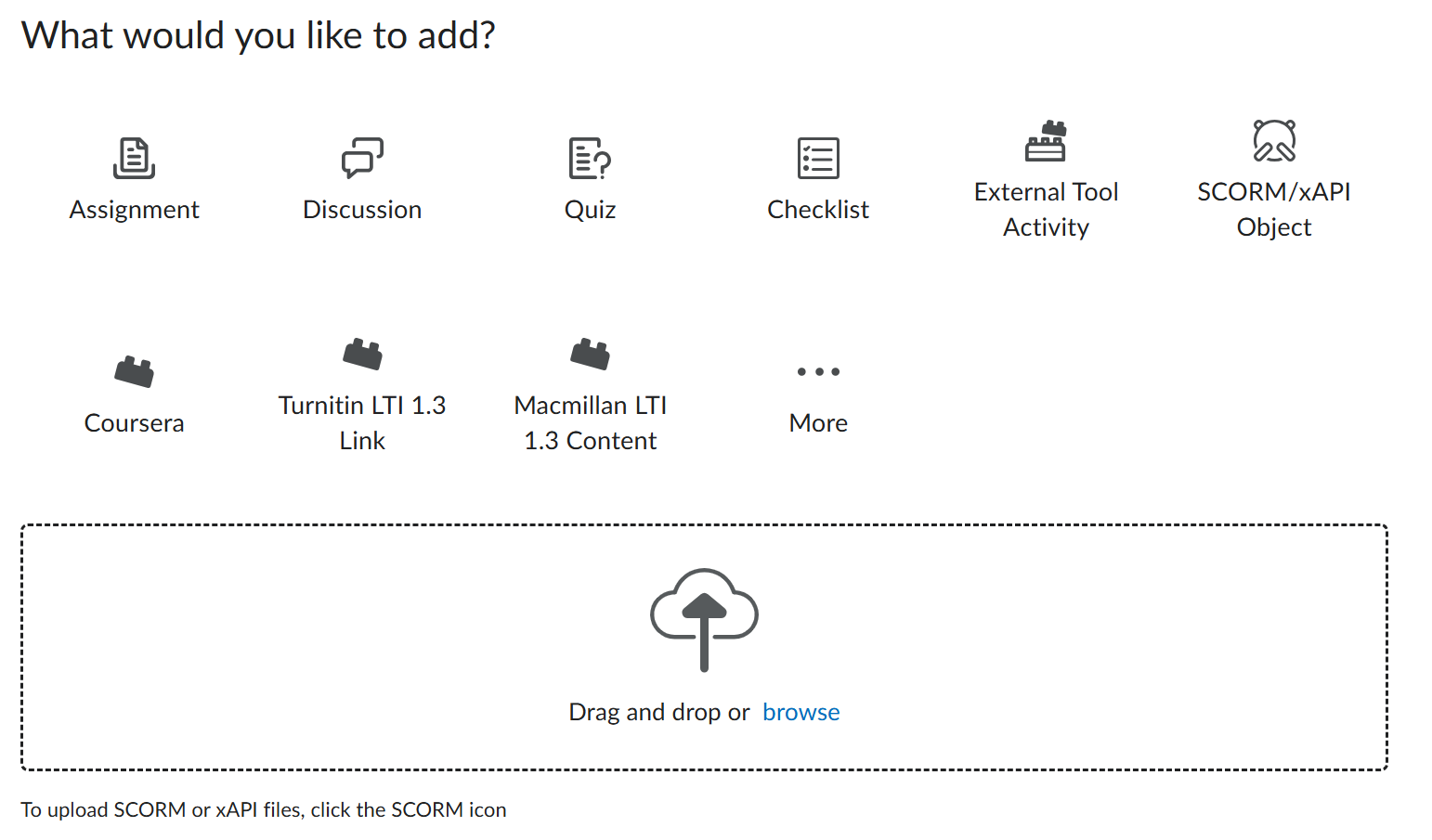
- Add Existing (formerly Existing Activities) allows you to link to existing D2L content, like Assignments, Discussions, or Quizzes, or to insert External Learning Tool activities. It also supports drag and drop uploading of existing files, like Office documents and PDFs.
- Create New (formerly Upload/Create) allows you to create a new lesson (folder), Page, or WebLink. It also allows the creation of new Assignments, Discussions, or Quizzes.
- Both tools feature a new, icon-based visual menu for adding content.
Return to Classic Experience
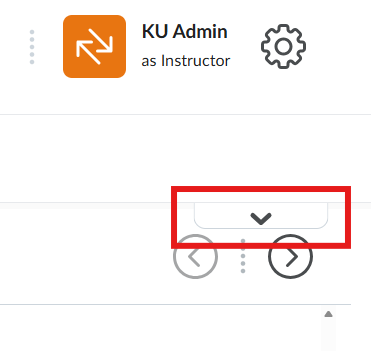
For a limited time, Instructors can switch back and forth between the new interface and the classic interface. To do so, look for an arrow at the top right of the Content view.
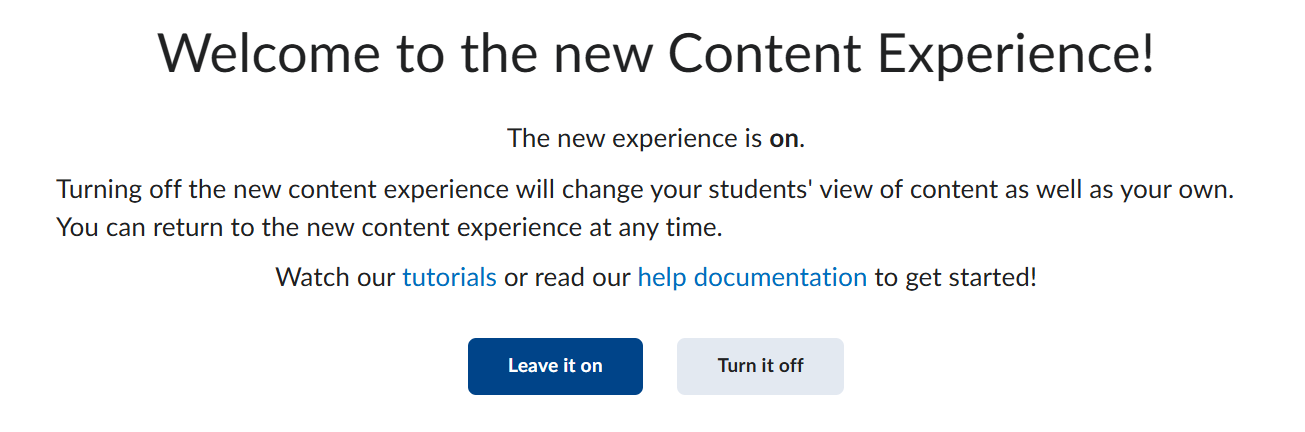
You will be prompted to either leave the New Content Experience on or Turn it off.
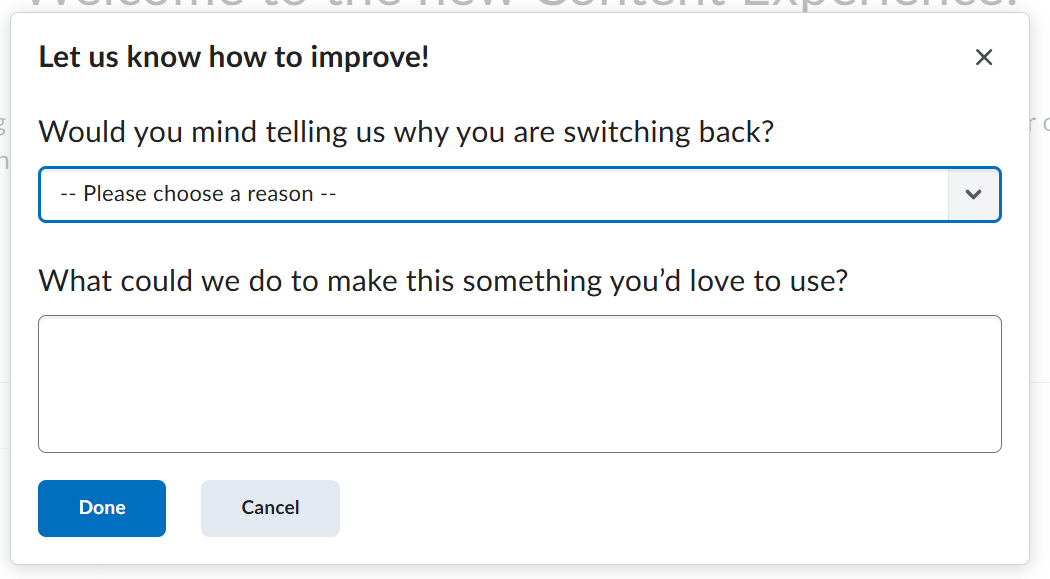
When returning to Classic experience, you will be asked to provide feedback. Note that feedback is optional and is reported directly to D2L, not KUIT.