Note: instructors should not need to manually add Inclusive Access links to their courses; however, in rare cases, it may be necessary. It is recommended that you confirm with the KU book store that you have opted into an Inclusive Access textbook before adding the link. 


Creating the Link in Content

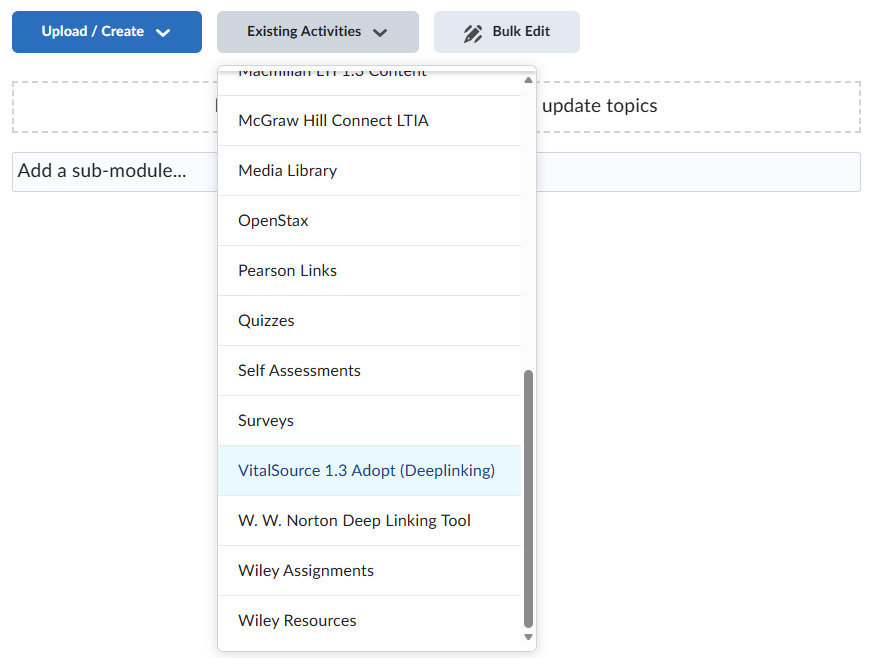
To add the Inclusive Access link to your course manually, navigate to Content and create a module titled Inclusive Access Materials. Then select Existing Activities>VitalSource 1.3 Adopt

A screenshot of the classic Content experience in D2L. The user is inside a module and has buttons at the top of the screen to Upload/Create (blue) or add Existing Activities (gray). Existing Activities is selected, showing a dropdown menu of available external learning tools. VitalSource 1.3 Adopt is towards the bottom of the alphabetical list.


Creating the Link in New Content Experience

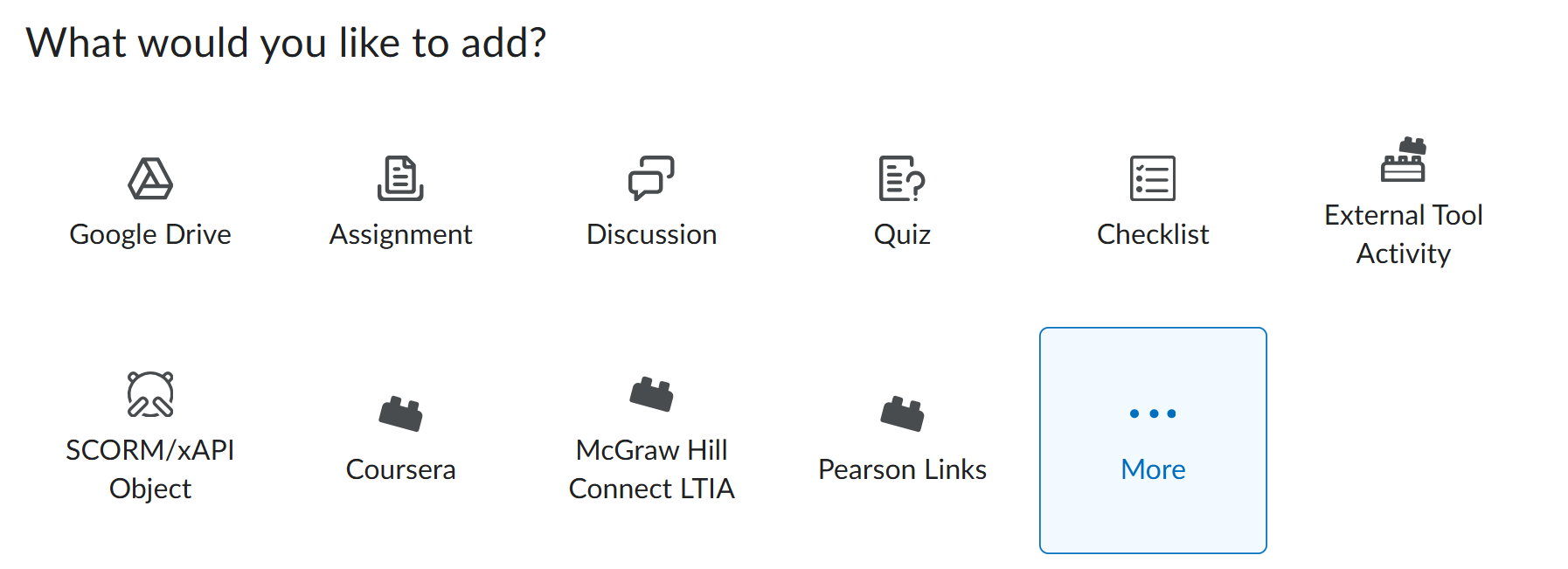
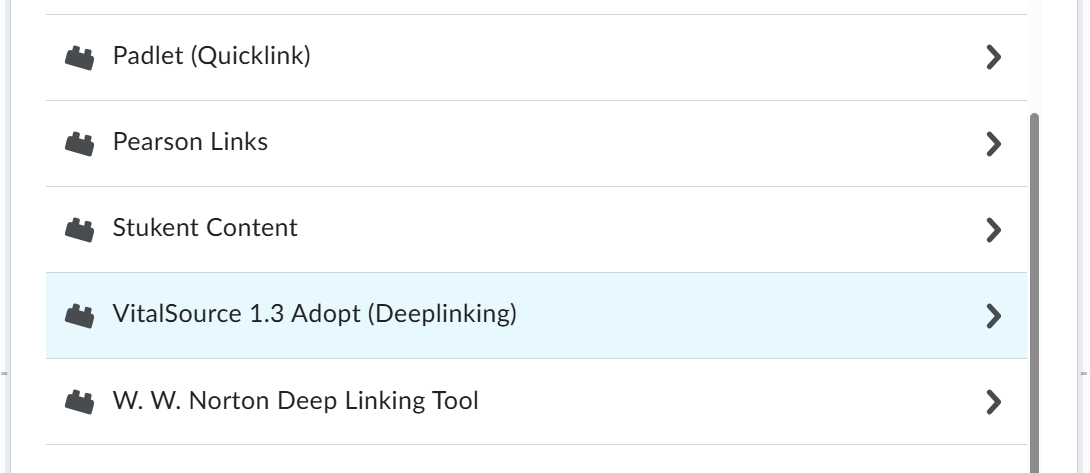
In New Content Experience, click on Add Existing>More>VitalSource 1.3 Adopt

A snippet of the New Content Experience view inside a lesson. Buttons at the top of the screen are present to allow instructors to Add Existing (blue) or Create New (gray).

A screenshot of the icons menu presented when an instructor clicks Add Existing under a lesson in Content. A grid of icons presents options to add Assignments, discussions, and External Tool Activities, among others. At the very end of the list is an option for More, which is highlighted. A snippet of the list of available External Learning Tools that is brought up when clicking More in the previous screenshot. A list of tools is presented alphabetically. VitalSource 1.3 Adopt (highlighted) is towards the end of the list.