
Sensitivity Labels are used to classify and protect university data based on sensitivity or confidentiality level. At Kutztown University, sensitivity labels can safeguard Microsoft files and emails, Teams sites, Microsoft 365 groups, SharePoint document libraries and PDF files against unauthorized disclosure. When you assign a label to content, the label and protections will stay with that content.
Encryption will be applied with Sensitive and Confidential labels and include a footer message indicating sensitivity.
Sensitivity Labels do not replace normal file permissions. Instead, they work together to provide an extra layer of protection.
Available Labels
- Public data is intended for public consumption.
- Examples include documents shared on Kutztown Univeristy’s website and marketing material.
- General data is intended for internal use, but is not sensitive or confidential.
- Examples include shared Office documents and internal communications.
- Sensitive data is generally private to Kutztown University. Access is limited to Kutztown University community members on a need-to-know basis.
- Examples include partner or sponsor information, certain research records, and ID numbers.
- Confidential data includes, but is not limited to, data that Kutztown University must keep private under federal, state, or local laws and regulations.
- Examples include student records, personnel records, and personally identifiable information.
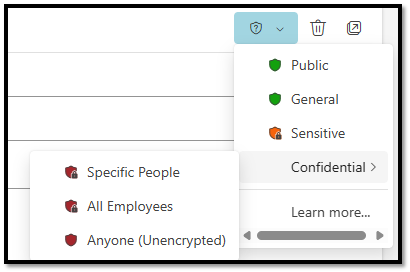
- The Confidential label can be used to restrict access to Anyone, All Employees, or Specific People.
| Public | General | Sensitive | Confidential Specific Users | Confidential All Employees | Confidential Anyone | |
| Applies encryption | ❌ | ❌ | ✔ | ✔ | ✔ | ✔ |
| Prevents access by unauthenticated users | ❌ | ❌ | ✔ | ✔ | ✔ | ✔ |
| Prevents access by non-KU accounts | ❌ | ❌ | ❌ | ❌ | ✔ | ❌ |
| Prevents forwarding | ❌ | ❌ | ❌ | ✔ | ❌ | ❌ |
| Prevents printing & downloading | ❌ | ❌ | ❌ | ✔ | ❌ | ❌ |
| Requires justification to decrease or remove label | ✔ | ✔ | ✔ | ✔ | ✔ | ✔ |
How to Select a Sensitivity Label
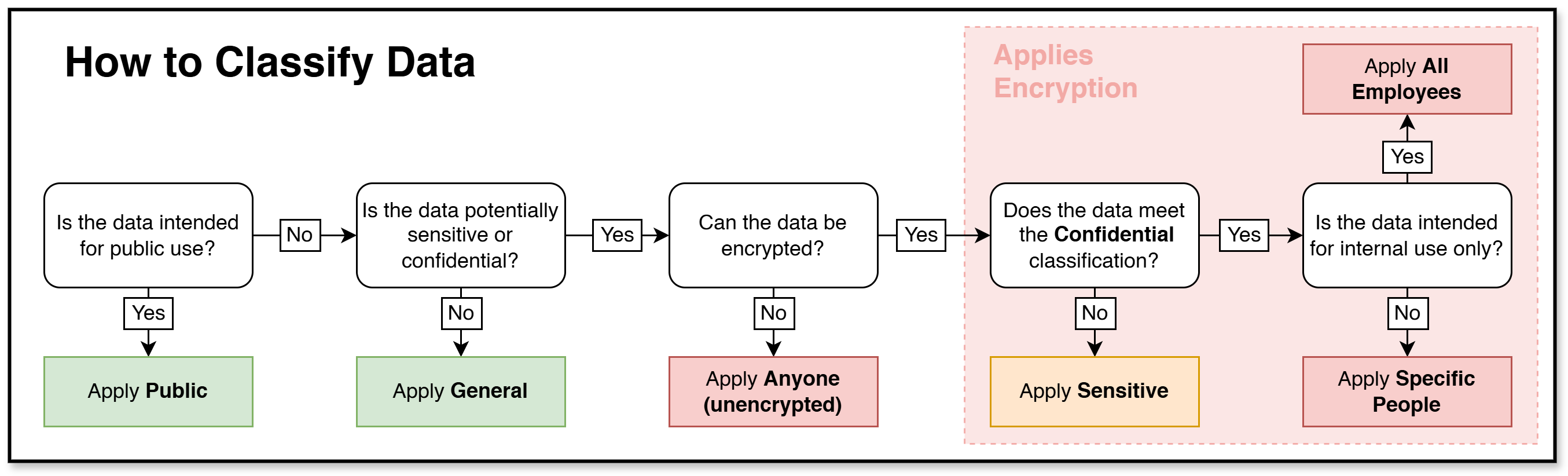
The Sensitivity Labels map to Kutztown University’s Data Classification Policy (click to view) and apply protections as defined. Refer to the flowchart below for guidance in selecting a label to apply.
Applying Labels in Microsoft Office
In all Microsoft Office apps, the Sensitivity icon in the top ribbon can be used to apply a label. Additionally, labels can be applied in Outlook using the shield icon at the top of the message.
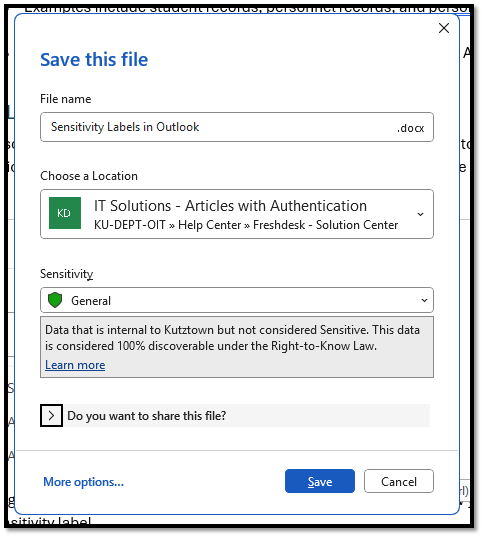
When saving a document in an Office application, a dropdown menu will allow you to select a sensitivity label.
Documents with sensitivity labels applied will display the label next to the name of the document.

Applying Labels in Adobe Acrobat
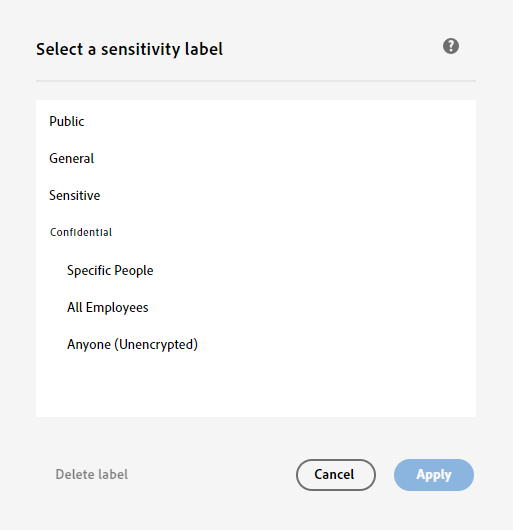
Sensitivity labels for PDFs must be added in Adobe Acrobat but can be viewed through Adobe or supported browsers. To add a label, open a PDF in Acrobat and look for Protect a PDF under the All Tools sidebar on the left.
After selecting Protect a PDF, look for Select a Microsoft Sensitivity Label. If required, login using your KU SSO username and password, to see the available sensitivity labels, then select the appropriate label.

Opening PDFs with Sensitivity Labels in a Browser
If a Sensitive or Confidential Label is applied, the PDF will only be accessible through Adobe or Microsoft Edge. Other browsers like Chrome, Firefox or others will not be able to open the PDF.
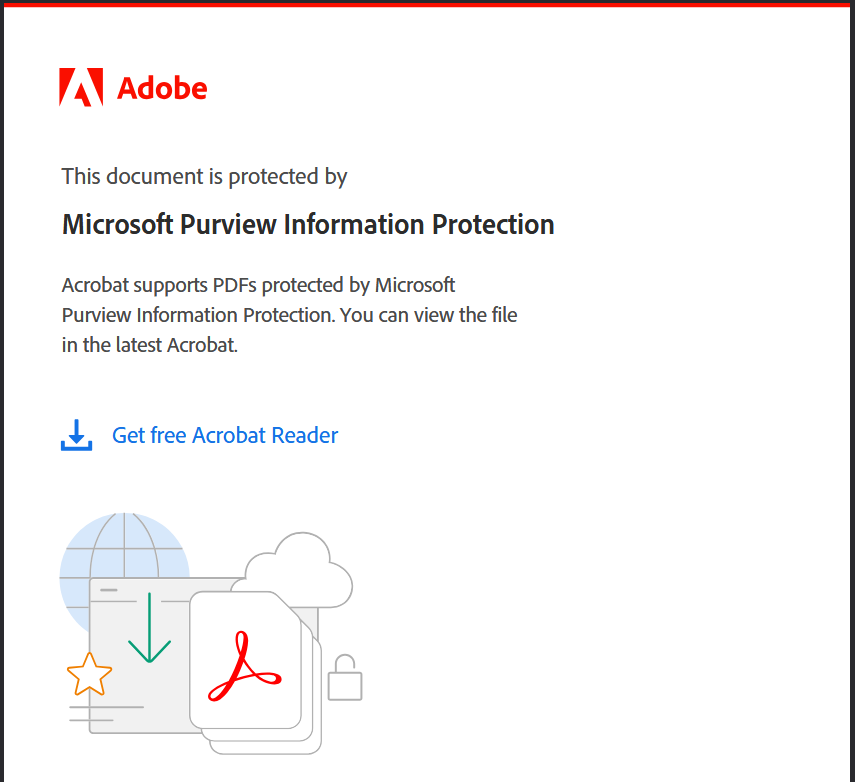
When opening a PDF with a sensitivity label in Edge, there will be a banner stating the file is being protected.
