
To make SharePoint files available offline (for use in File Explorer):
Syncing Folders to Explorer
- Open SharePoint in a web browser and navigate to the document library containing the files you want to sync.
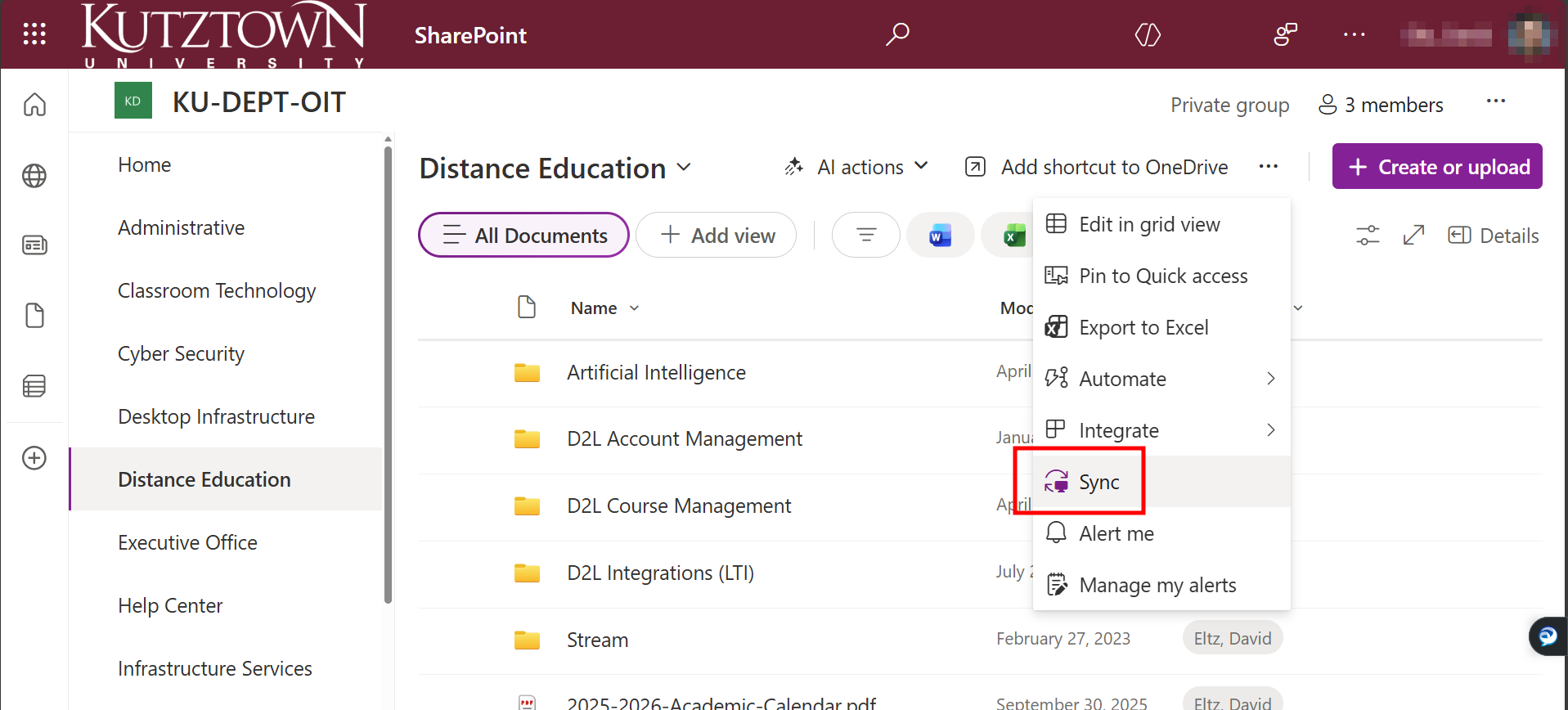
- Click the Sync button from the library’s toolbar. If prompted, allow your browser to open OneDrive.
- Sign in to OneDrive with your KU account if prompted.
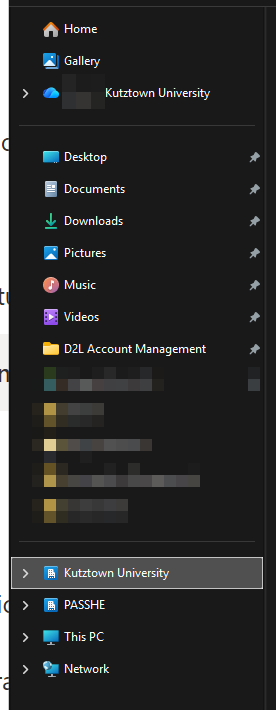
- Once the setup is complete, your SharePoint files and folders will appear in File Explorer under a section labeled Kutztown University.
Keeping Files Available Offline
File availability is indicated by an icon. In Details view, this icon is displayed in the Status column. In the Icons view, the icon appears before the file name.

- To ensure specific files or folders are available offline, right-click on them in File Explorer and select Always keep on this device.
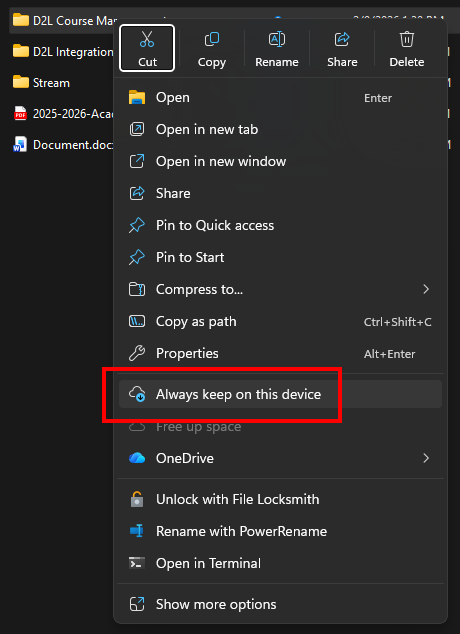
- The selected files will now be downloaded and stored locally, allowing you to access and edit them even when you are offline. Any changes will automatically sync with SharePoint when you reconnect to the internet.