
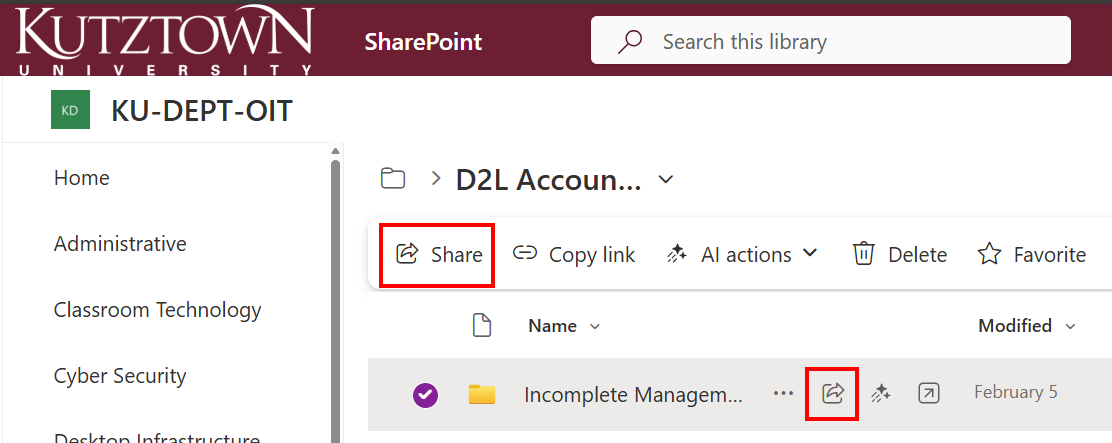
- Navigate to the SharePoint document library containing the file you want to share.
- Right-click the file or select the file and click the Share button.
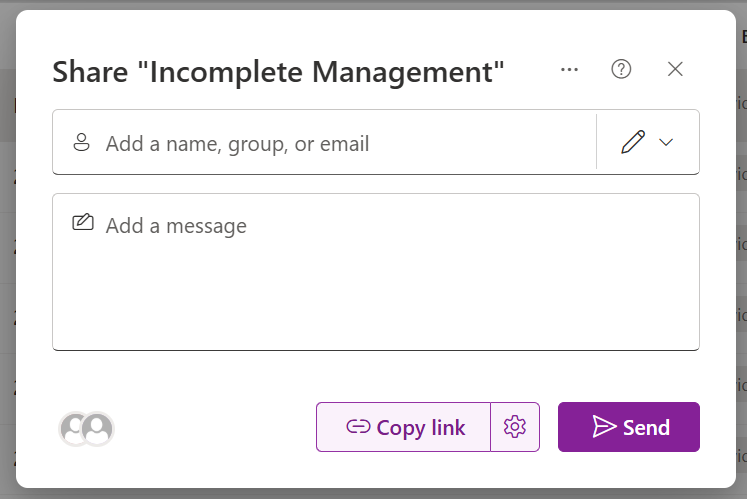
- In the sharing dialog, enter the email addresses of the people you wish to share with, or select sharing options such as “Can edit,” “Can view,” or “Can’t download.”
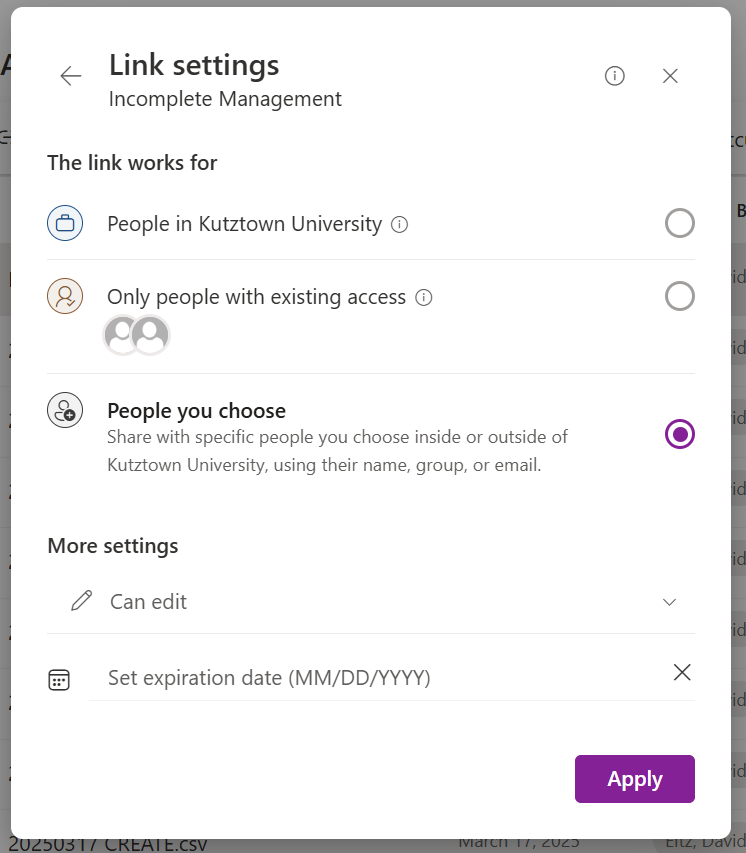
- Click the Gear Icon next to Copy Link to Set the appropriate permissions, including with whom the file is shared and whether they can edit.
- Add a message if desired, then click Send or Copy Link to share the file.
Notes
Sensitivity labels can affect how files are shared in SharePoint. If a file is labeled with a high-sensitivity classification, certain sharing options may be restricted—for example, you might not be able to share with people outside your organization or allow editing. The available sharing settings will automatically adjust based on the sensitivity label applied to the file, ensuring proper data protection.