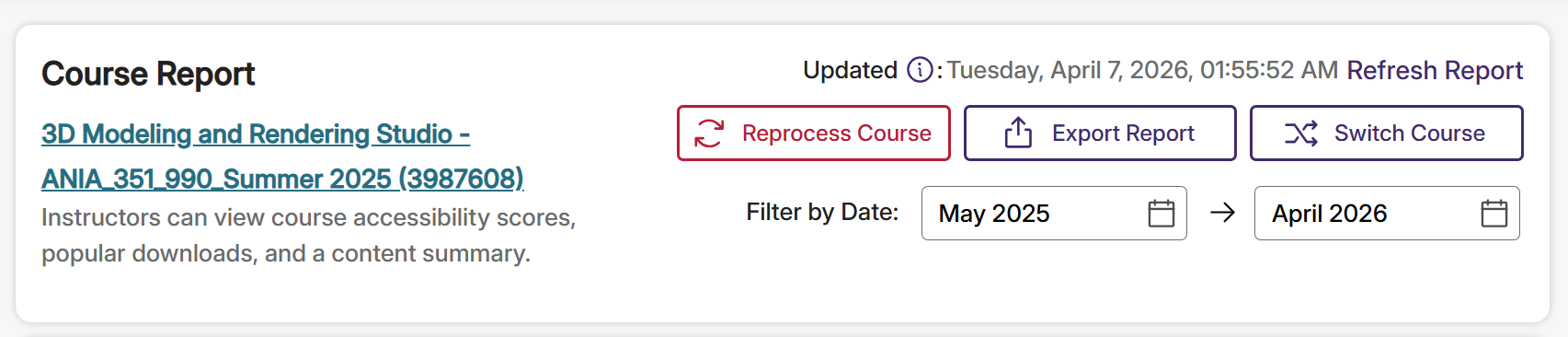
Course Report
The Panorama Dashboard displays important information about the overall accessibility of a course. The dashboard can be accessed by logging directly into
The top of the dashboard features some controls for the Course Report, including the ability to restrict information to a certain time period and a control to reprocess the entire course. The Switch Course button can be used to view the Course Report for any other shell in which the user has Instructor or Manager access.
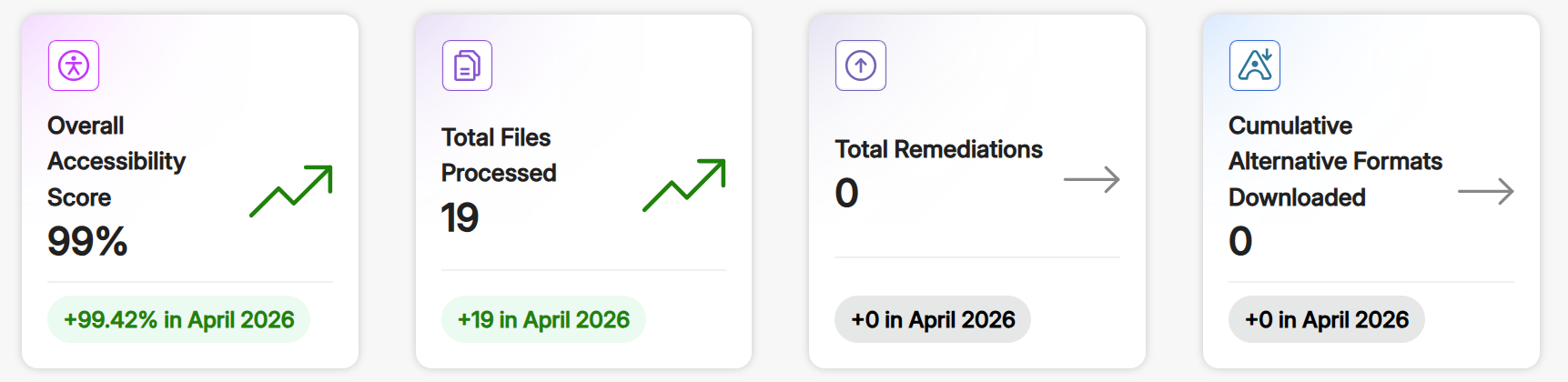
The boxes below these controls contain statistics about the course’s accessibility including its Overall Accessibility Score, the number of files processed, remediations, and usage of alternative formats.
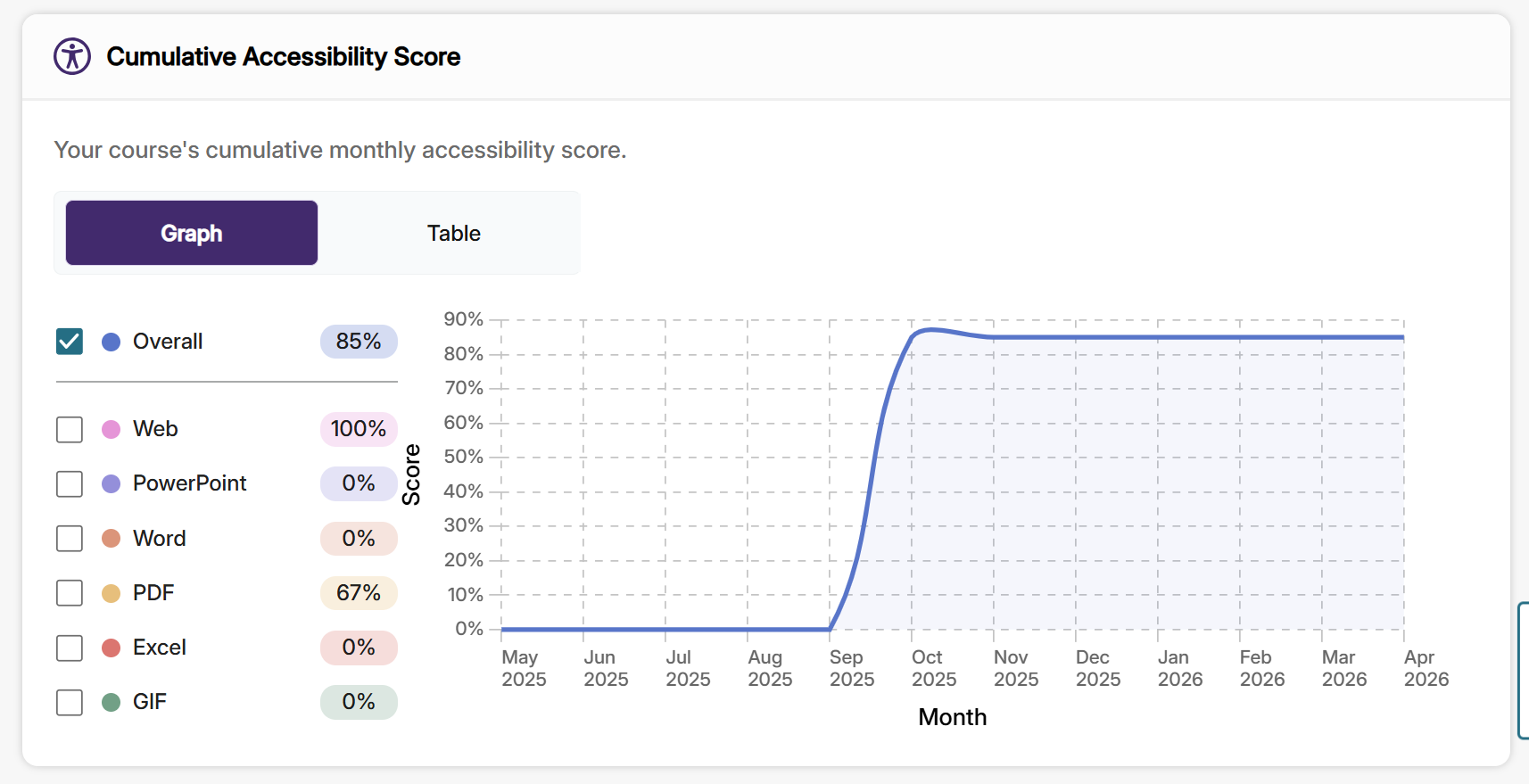
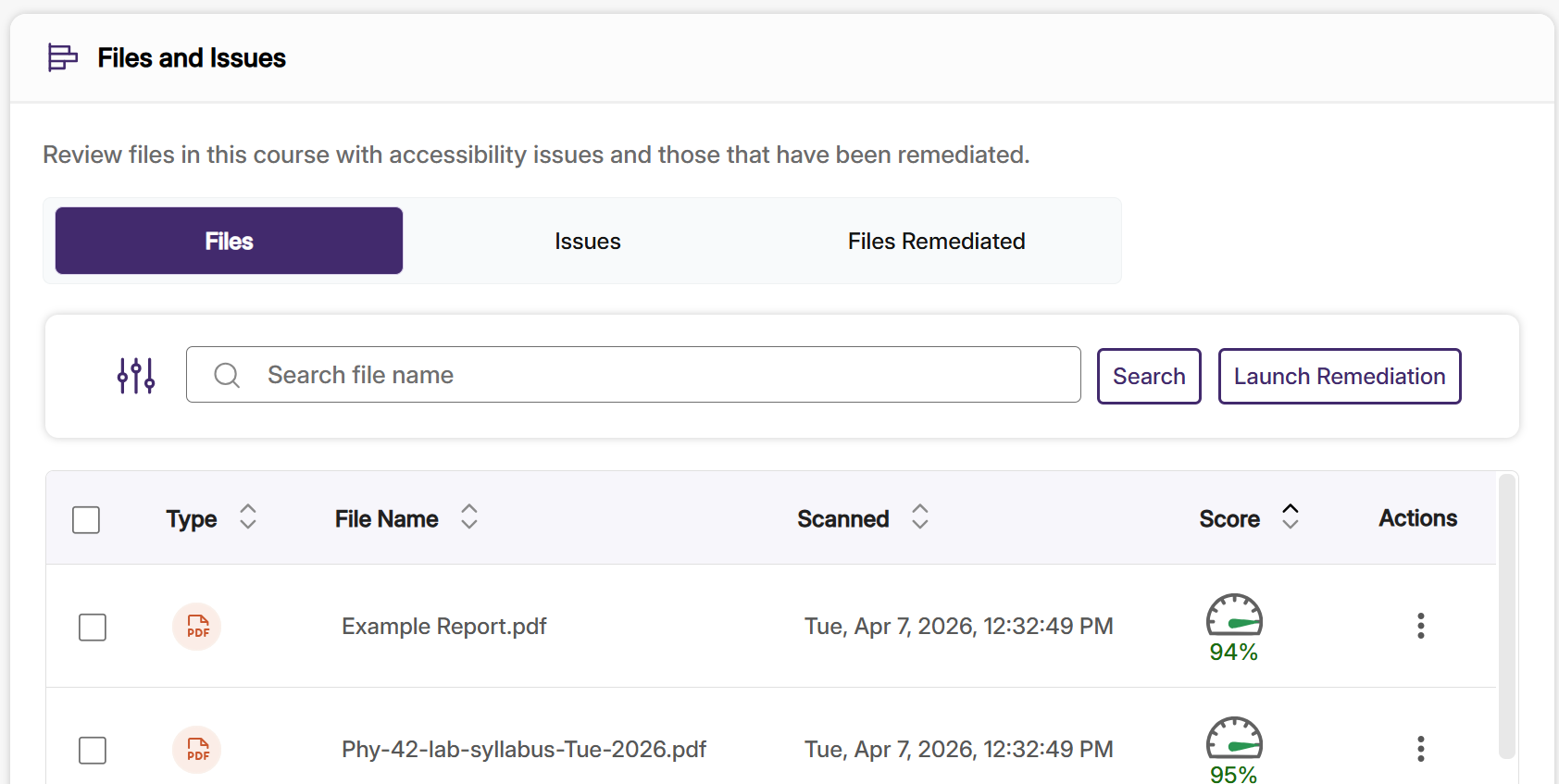
The default view also contains graphs to indicate a course’s accessibility score over time, the types of documents contained in the course shell, and a browser for files and issues. This browser can be sorted by accessibility score or issue severity to help prioritize remediation work.
A Note on Accessibility Scores
If you notice a significant disparity between your files on D2L and the Overall Accessibility Report score, try the following:
- Note the number of content items in D2L, as well as the number of assessments and quizzes with written directions. Panorama will scan all of these for accessibility.
- Compare this number to the data in Panorama’s Course Report (under Total Files Processed and Files Processed by Document Type).
- Compare the files listed in Files and Issues in Panorama to those in Course Admin>Manage Files in D2L.
- If Panorama is reporting scores on files that have been deleted from D2L, consider using the Reprocess Course button at the top of the page.
Course Configuration
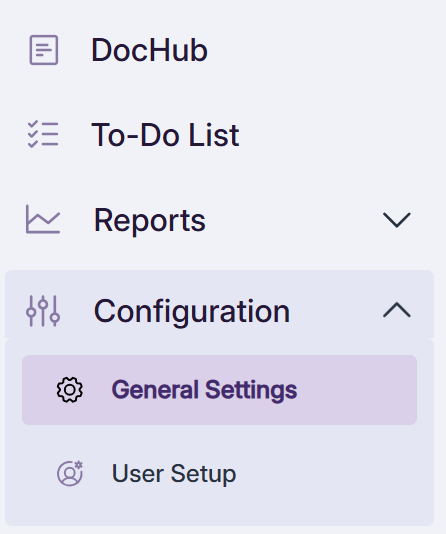
The Configuration option in the left sidebar allows you to change the settings for your course. Note that these changes must be applied on a per-course basis.
The left column of the configuration menu allows for changes to Panorama’s behavior in the course, including file replacements, issue detection in PDFs and HTML, display settings, and WYSIWG Accessibility Checker settings.
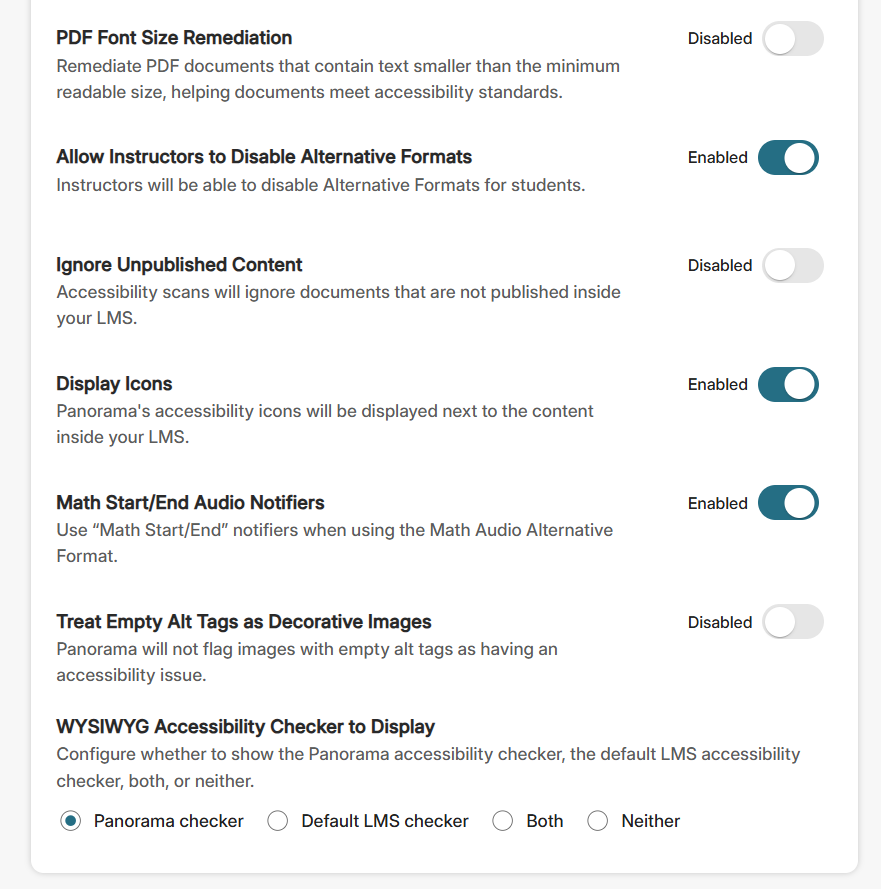
Note: Panorama enables its accessibility checker in all D2L text editor spaces by default. This accessibility checker is more comprehensive than D2L’s native checker, but either (or both) can be enabled using this tool.
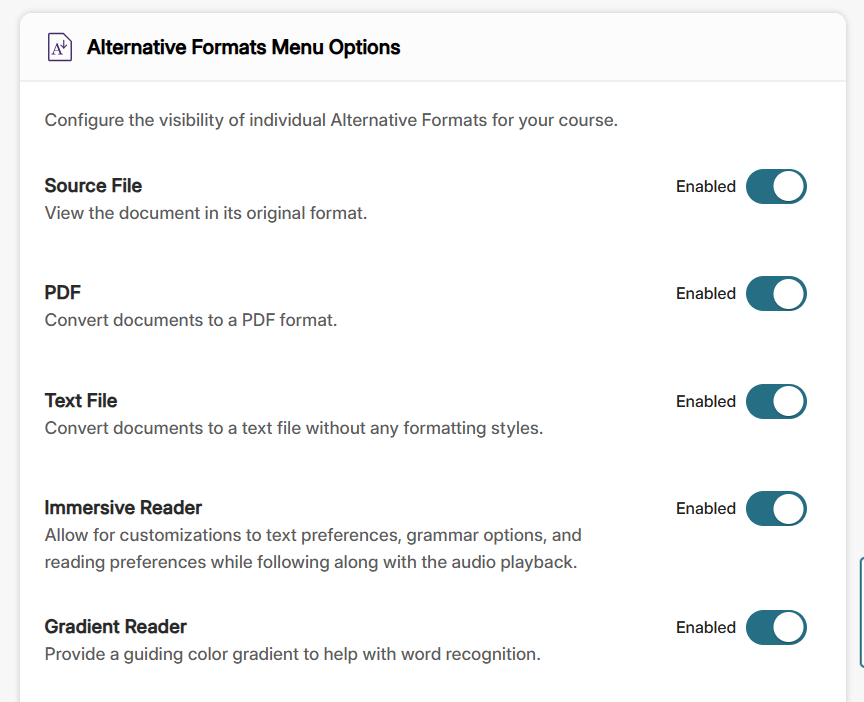
The right column allows you to enable or disable alternative formats for the files in your course.
User Settings
User Settings are available via a tab at the top of the configuration page. These settings apply per-user, meaning changes made here will apply to all courses you have access to, but these changes will not apply to any other users.
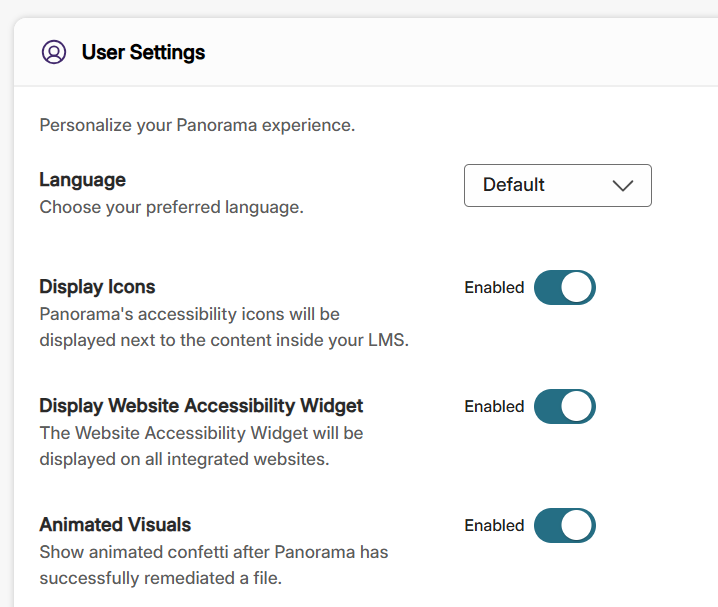
Use the appropriate toggle to disable Animated Visuals if you do not wish to see confetti animations or similar while remediating files.
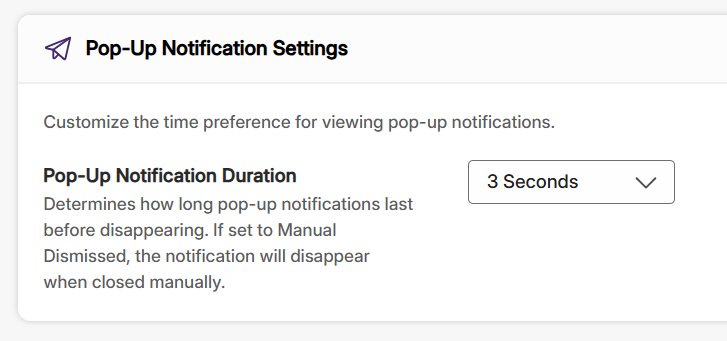
Use the Pop-Up Notification Duration to control how long Panorama notifications stay visible at the bottom right of the screen. The duration can be extended to 3, 5, or 10 seconds, or notifications can be set to persist until dismissed.