
- As part of the ongoing effort to reduce print waste, KUIT has implemented a new Secure Print queue allowing users to send print jobs to a centralized queue and release them only when they are physically present at a copier.
To enhance security and convenience, badge readers and Secure Release IDs have been also implemented, enabling users to authenticate at devices and securely retrieve their print jobs.
TABLE OF CONTENTS
What is Secure Print?
Secure Print is a print queue that holds your document in a protected queue until you are physically at a printer to release it.
Why use Secure Print?
- Protects sensitive information (grades, HR data, student records).
- Prevents documents from being left unattended.
- Reduces wasted printing (only print what you pick up).
- Allows you to print top any supported device on campus.
- This is currently limited to Fraser Copiers/Printers.
How to Use Secure Print
Step 1: Send Your Print Job
- Select Print in your application (Word, Adobe, etc.).
- Choose the "Secure Print" as your printer.
- Click Print.
- Wait for the PaperCut popup on your computer screen.
- Note your 7-digit Secure Release ID on the popup, this is the number you will enter on the Fraser MFD.
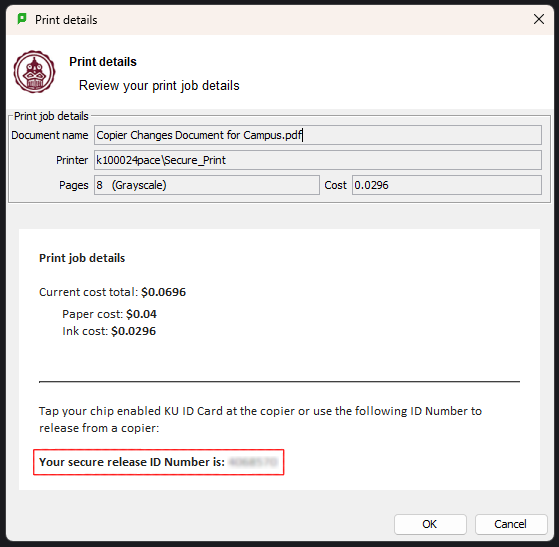
- Note your 7-digit Secure Release ID on the popup, this is the number you will enter on the Fraser MFD.
- Click OK on the popup.
Step 2: Go to a Sharp (Fraser) Copier
- Visit any Sharp copier on campus.
- Log in using your Secure Release ID or tap your KU ID badge.
Step 3: Release Your Print Job
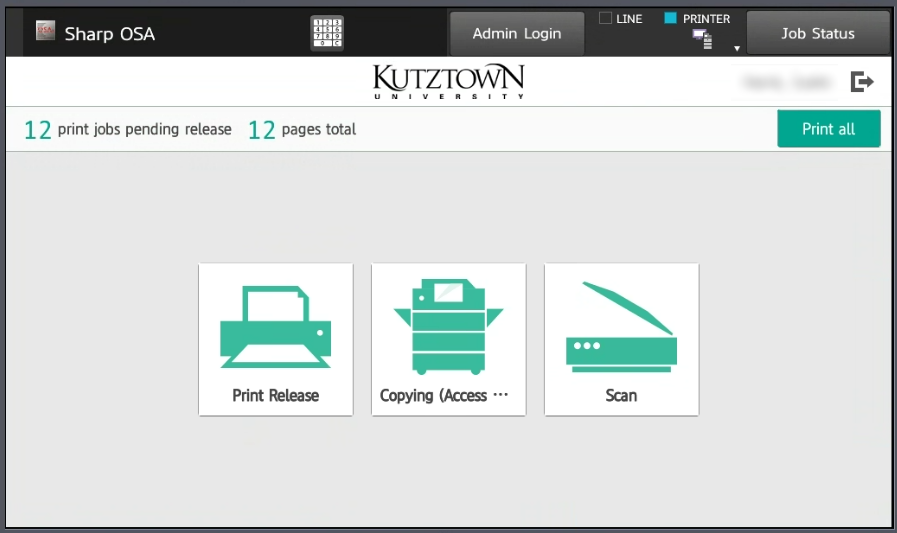
- Select Print Release on the copier.
- Choose the document(s) you want to print.
- Tap Print.
Making Copies
- Visit any Sharp copier on campus
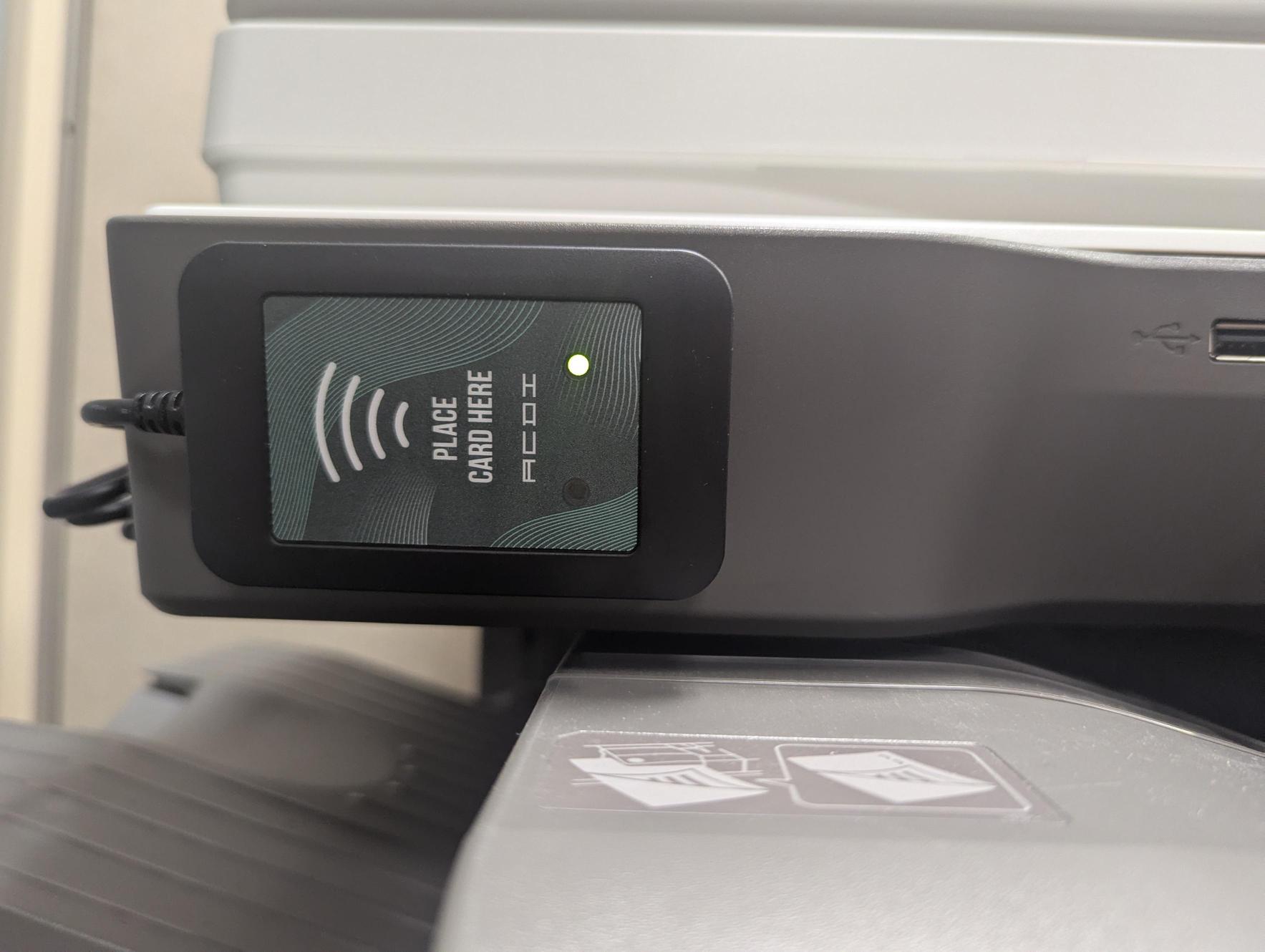
- Log in using your Secure Release ID on the touschscreen or tap your KU ID badge to the card reader located on the front of the copier
- Select the copy function from the main screen.
- Enter the number of copies desired.
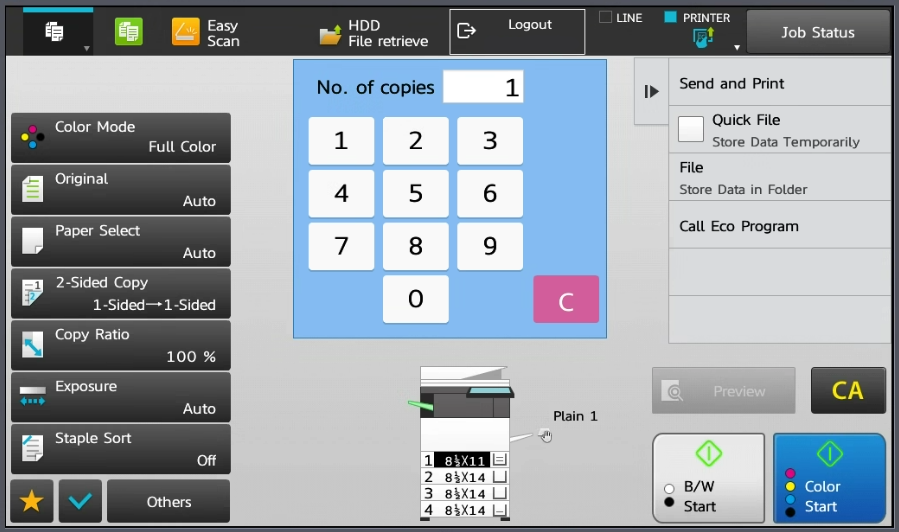
- Select B/W or Color as desired to initiate the copy.
Scanning to Yourself
- Go to a Sharp Copier.
- Log in using your Secure Release ID or KU ID badge.
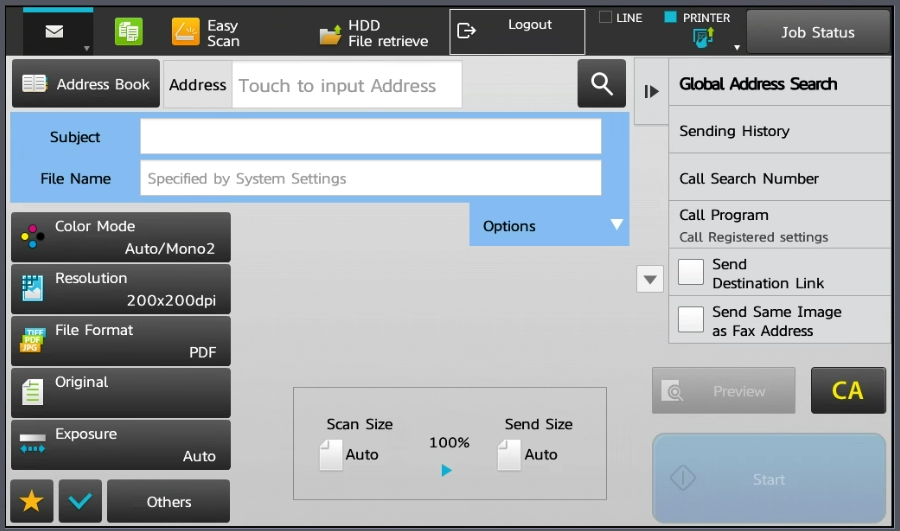
- Select Scan from the main screen.
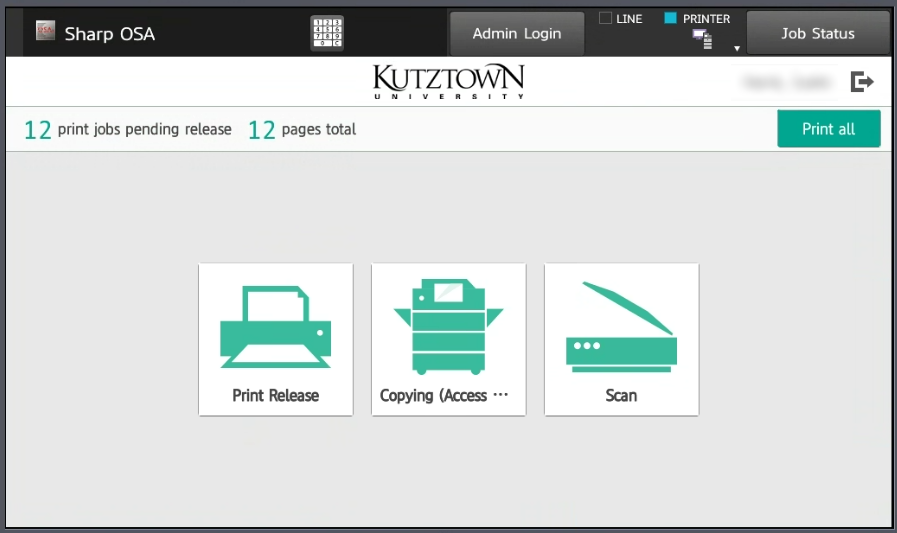
- Confirm the To field is your email.
- The user that is currently logged in has their email automatically populated as the recipient.
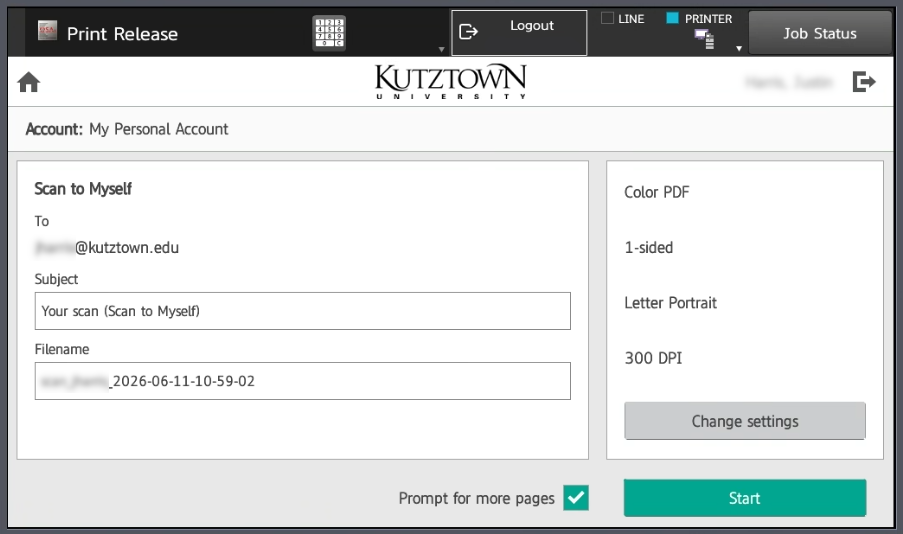
- The user that is currently logged in has their email automatically populated as the recipient.
Scanning to Someone Else
- Go to a Sharp Copier.
- Log in using your Secure Release ID or KU ID badge.
- Select Scan from the main screen.
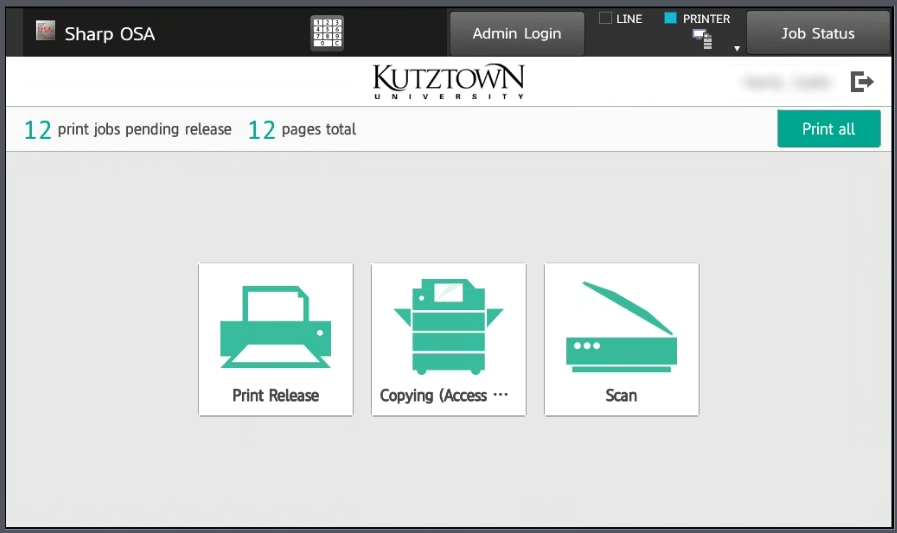
- Press the large "Home" button on the edge of the copier screen bezel, then select Email.
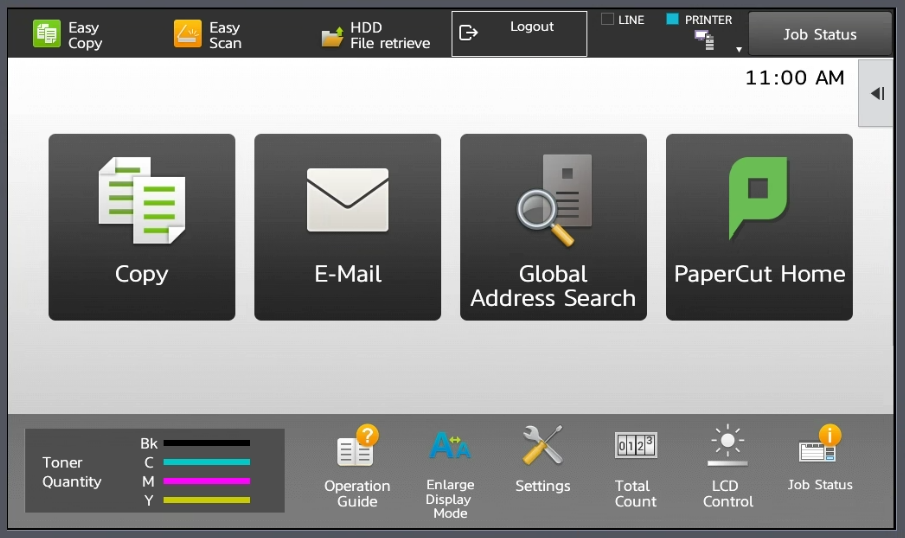
- Enter email address of recipient, or use the Address Book.
FAQ's
Secure Release ID - What is it?
- Your Secure Release ID is a randomly generated 7-digit number. This number is unique to you, and it will not change. Think of it as a PIN number for printing at a Fraser device.
- To get your Secure Release ID, send a document to the Secure Print queue. The ID will be shown at the bottom of the PaperCut popup.
Will I still contact Fraser for support and supplies?
- Yes, Fraser is once again our partner for this contract, and their support will not change.
- Support contact info can be found on the ID tag of each copier.
Can I still print to my office's copier?
- Traditional direct print queues for individual office copiers have been maintained to support existing workflows and user preferences.
Can I use my KU ID Card?
- Yes, there is a badge reader on each Fraser unit that receives information from your KU ID card. You can use your ID instead of your Secure Release ID number if you prefer.
- You must have a tap-enabled ID for this to work. Tap-enabled ID’s are identified by cards that have the stripe on the bottom of the card. If your stripe is on the top, your card will not have the chip inside it. If you do not have a tap-enabled card, you may need to visit the Card Office in Academic Forum 107 to retrieve a new ID card.
Can I print directly to the Fraser MFD without Secure Print?
- Yes, your copier will be listed in PaperCut, just as they have previously.
You will need to re-add your copier to your device list in Papercut. Instructions on how to add a printer via PaperCut can be found on IT Solutions.