
Private Wi-Fi address (or MAC address randomization) is a feature on most phones and laptops. It periodically assigns a random/rotating MAC address (used to recognize your device) when the device connects to a Wi-Fi network. This can result in having to re-register your device every couple of weeks. As a result, we recommend disabling this feature when connecting to ResNet Wi-Fi or BearNet.
Note: The Private Wi-Fi Address feature has no impact when connecting to the Golden Bears secure network.
iOS (version 14 or later)
- Open the Settings app, then tap Wi-Fi.
- If you aren’t currently connected to Wi-Fi, tap Edit in the upper-right corner of the screen.
- Tap the More Info button
 next to the network name (i.e. ResNet WiFi or BearNet).
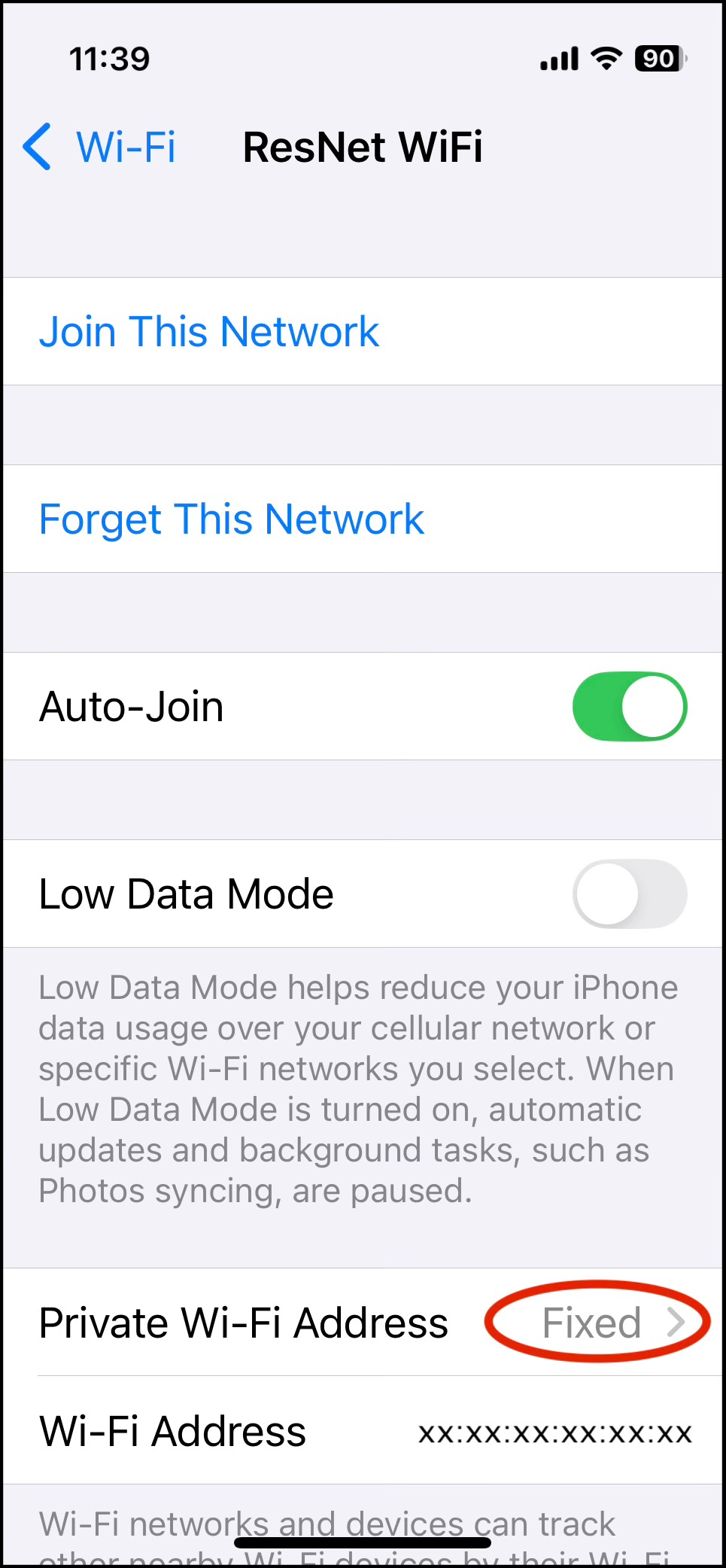
 - If Private Wi-Fi Address is set to Rotating, change it to either Fixed or Off.
macOS (Sequoia 15 or later)
- Choose Apple menu > System Settings, then click Wi-Fi in the sidebar.
- Click the Details button or the More Info button
 next to thte network name (i.e. ResNet WiFi or BearNet).
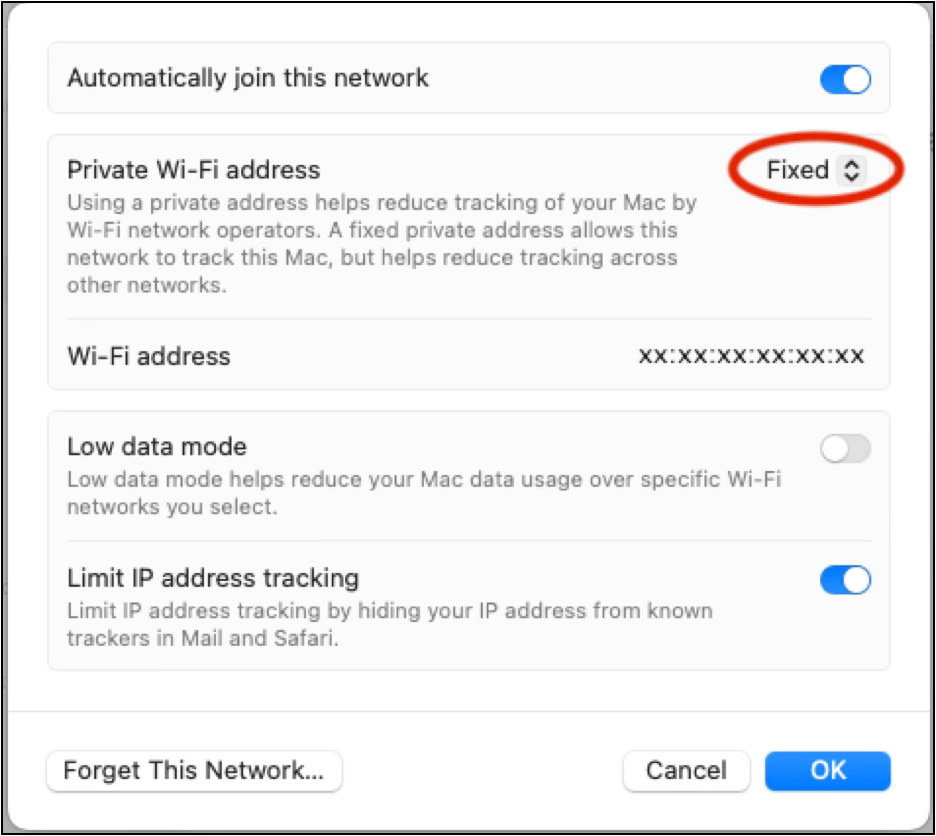
 - If Private Wi-Fi Address is set to Rotating, change it to either Fixed or Off.
Android
Google Pixel, Motorola and others
- Open Settings > Network & Internet > Internet.
- Tap the gear icon next to the network name (i.e. ResNet WiFi or BearNet).
- Select Privacy.
- Choose Use device MAC.
Samsung Galaxy
- Open Settings > Connections > Wi-Fi.
- Tap the gear icon next to the network name (i.e. ResNet WiFi or BearNet).
- Tap MAC address type.
- Select Phone MAC.
Windows
- Click Start menu, then select Settings > Network & Internet > Wi-Fi.
- Turn off Random hardware addresses.