
What is Passkey?
TABLE OF CONTENTS
Passkey
Passkey is a secure, streamlined sign-in method that uses your device's built-in security features, such as a PIN, fingerprint, or Face ID. Passkeys help protect your account from phishing attacks and provide a faster, more convenient sign-in experience.
What do I need before setting up a Passkey?
To create a Passkey using Microsoft Authenticator, you will need:
- Microsoft Authenticator installed on your phone.
- A phone screen lock configuration (PIN, fingerprint, or Face ID).
- iOS 17 or later, or Android 14 or later.
- Bluetooth Enabled.
How do I set up a Passkey in Microsoft Authenticator?
Follow the steps below to create a Passkey for your Kutztown University Account.
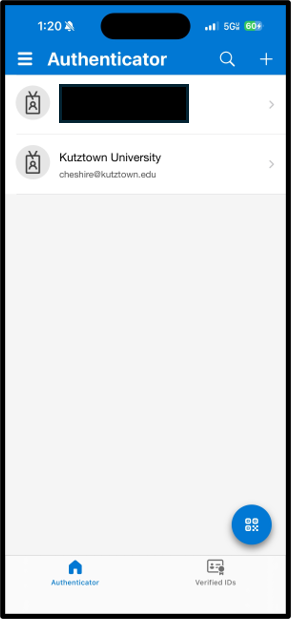
- Open the Microsoft Authenticator app on your phone.
- Select your Kutztown University account.
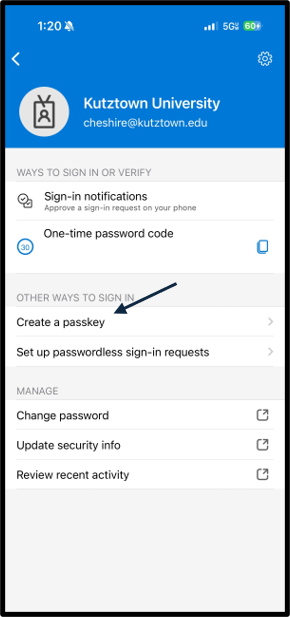
- Chose Create a passkey.
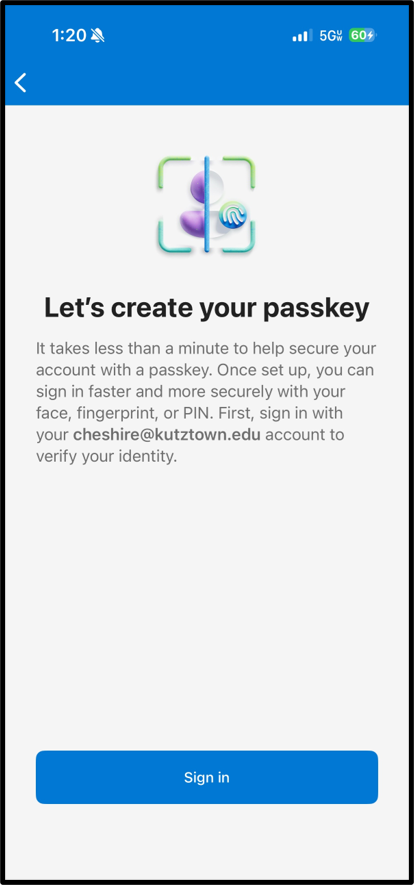
- Click Sign In.
- Choose Continue.
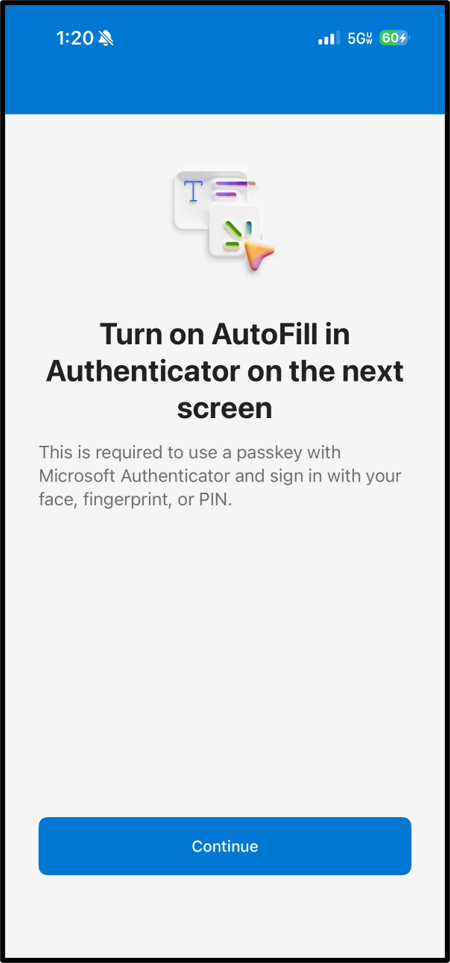
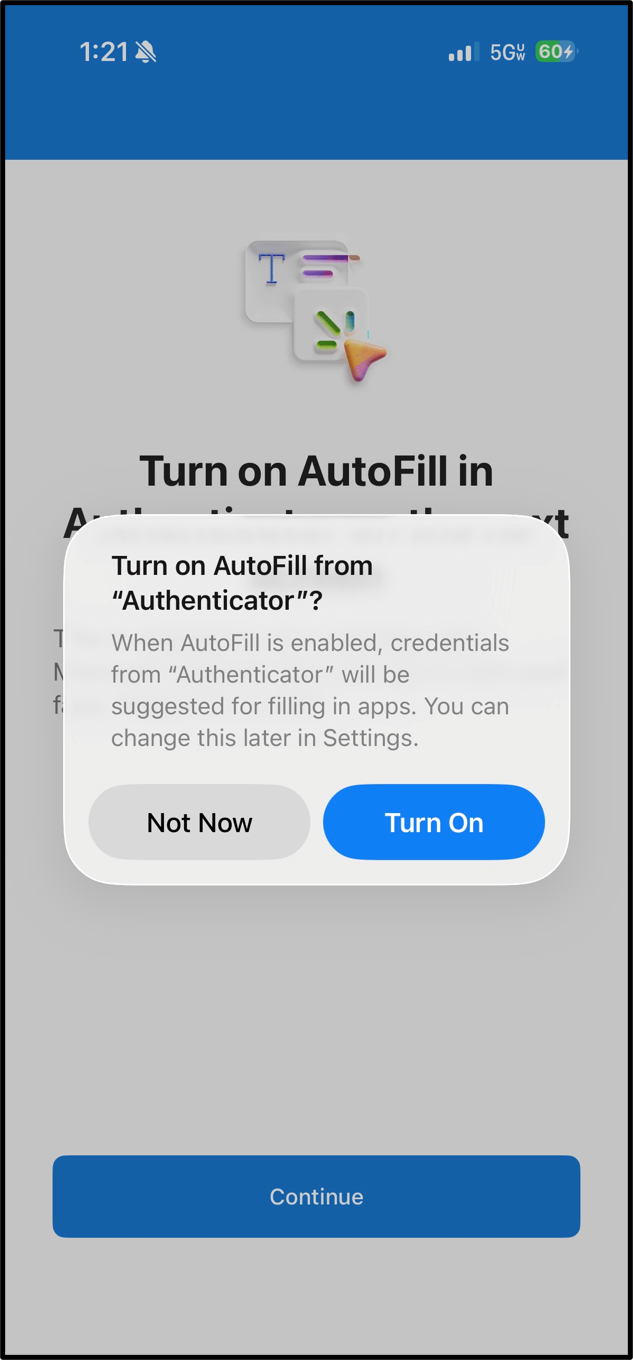
- When prompted to turn on Autofill from Authenticator, choose Turn On.
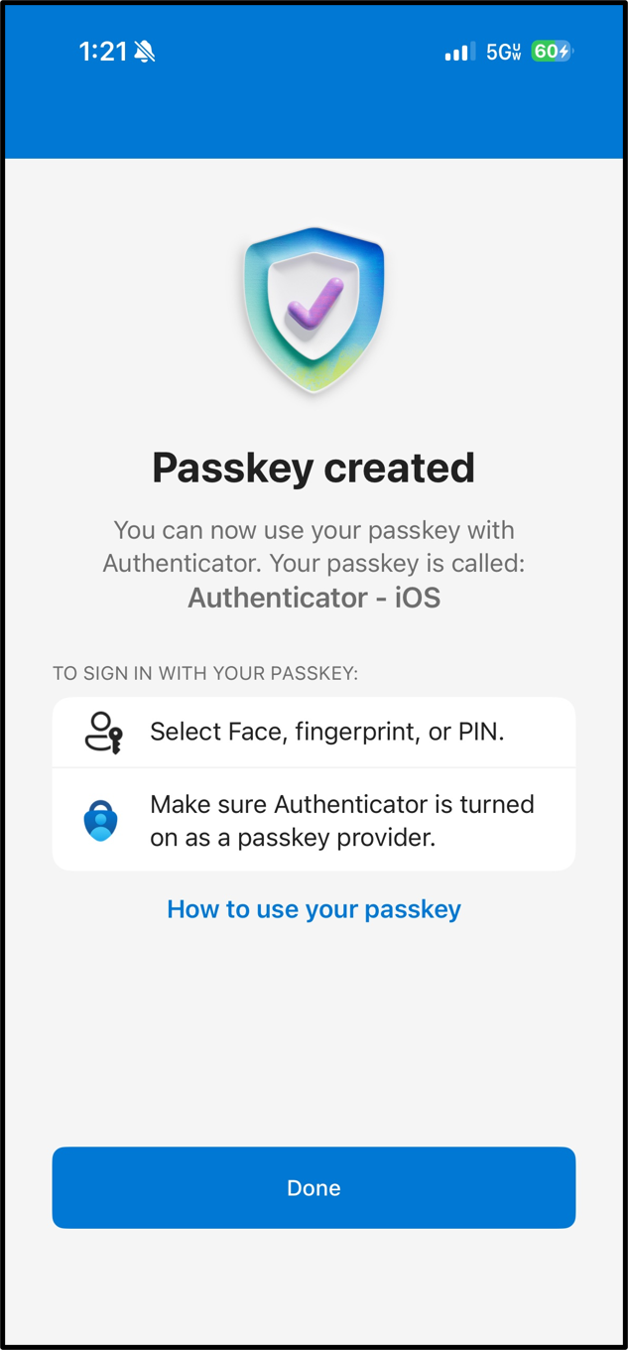
- It will say that your Passkey has been created, click Done.
 8. When you see the Passkey option above the One-time Passcode, you have successfully set it up.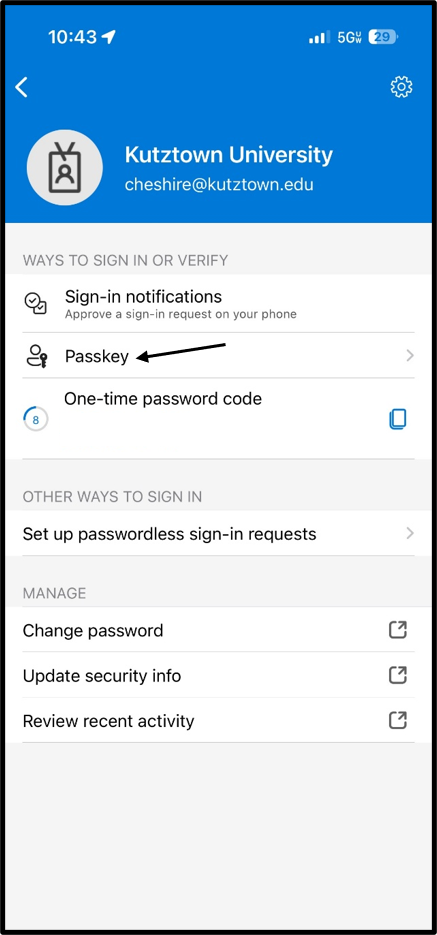
How do I sign in with Passkey?
- Sign in to any KU application on your KU laptop.
- Type in your email and click Next.
- Type in your password and click Sign In.
- Once you click Sign In, there will be a pop up that says Choose a passkey.
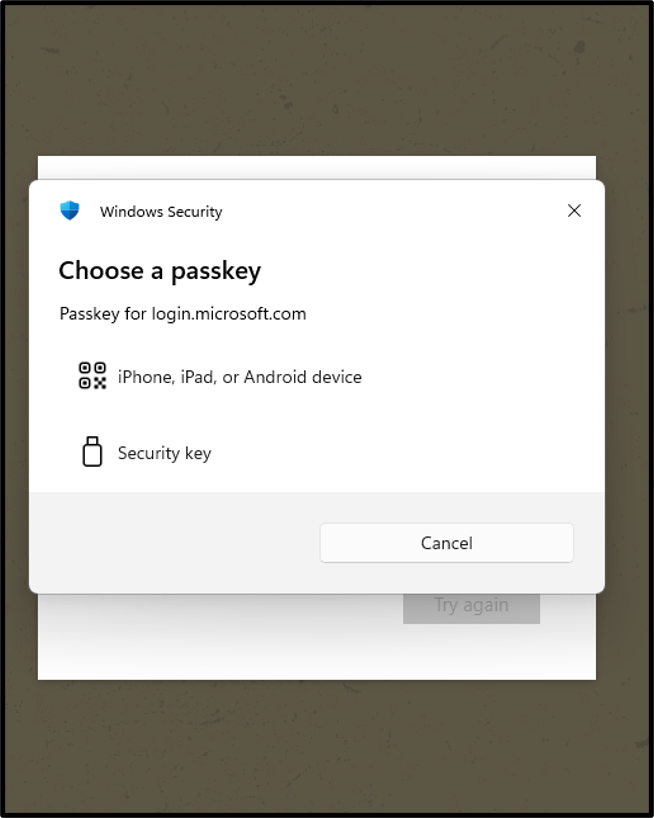
- Choose iPhone, iPad, or Android device.
- Take your device and scan the QR code with your device's camera.
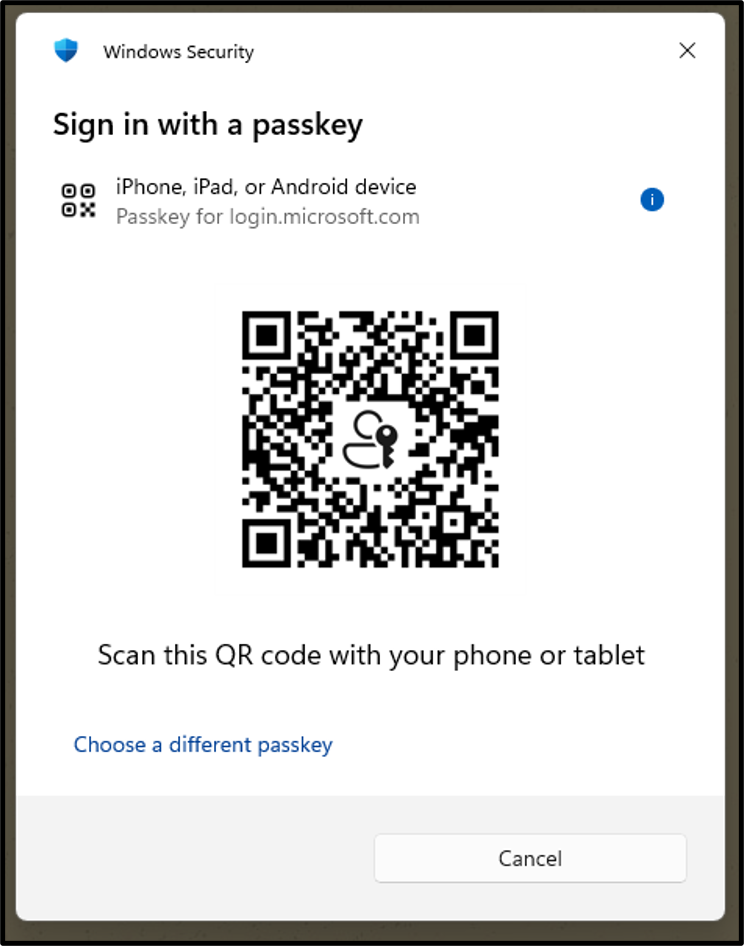
- After scanning the QR code, a pop up is going to appear. Choose Use Passkey.
- It will ask you for your Face ID, pin, or fingerprint to your phone.
- Once you type your passcode in, it will sign you in successfully on your KU laptop.
Note: Once a passkey is configured, Microsoft Authenticator may present the passkey option as your preferred sign-in method. You can still use other approved authentication methods if needed..